
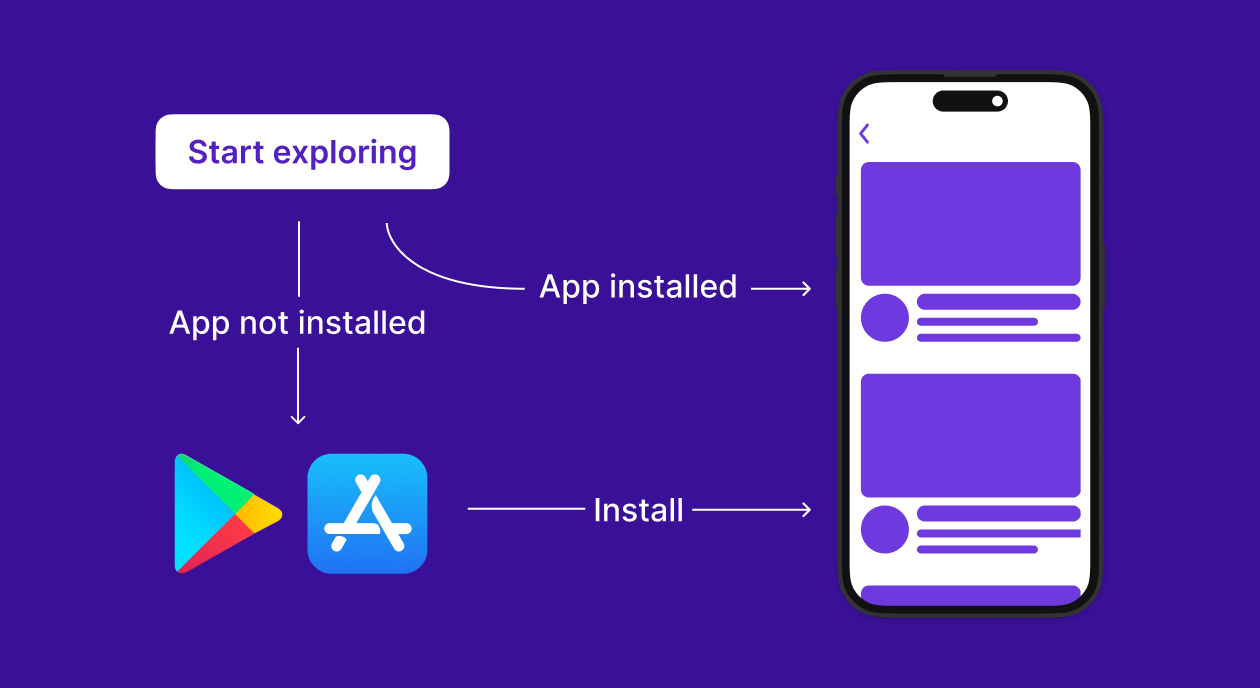
Deferred deep links let you send a user straight to a specific screen inside your app — a product page, an offer, a referral reward — even if the app isn't installed yet when they click the link. Once the app installs and opens for the first time, the user lands on the exact screen the link pointed to, instead of a generic home screen.
What changed for 2026: this guide has been rechecked against the current Install Referrer library, Android's latest background-execution restrictions, and Jetpack Compose navigation patterns. We added a Firebase Dynamic Links comparison, a Compose-specific routing section, and a fuller troubleshooting table. The core integration steps and the Smler API call are unchanged — they still work exactly as described below.
In this guide, we'll walk you through:
Setting up the Install Referrer API
Handling the deep link after app install
Sending install data back to Smler
Routing users to the right screen using the link, including with Jetpack Compose
Testing the flow and fixing the issues that most often break it
How Do Deferred Deep Links Work on Android with Smler?
When a user clicks a Smler deferred link and then installs your app from the Play Store, four things happen in sequence:
The Install Referrer string attached to the Play Store install contains the link metadata (query parameters like
pageor a full path).Your app reads this referrer string on first launch.
The app extracts the deep link from the referrer URL and tracks the deep link open by hitting the Smler endpoint.
The app redirects the user to the appropriate screen using the destination URL returned by the
/api/v1/shortendpoint.
If you haven't generated a deferred link yet, see the step-by-step guide to generating deferred deep links in Smler before wiring up the Android side below.
Step 1: Add the Install Referrer Dependency
Google's Install Referrer library is what gives you access to the referrer string. Add it to your module-level build.gradle:
dependencies {
  implementation 'com.android.installreferrer:installreferrer:2.2'
}
This is the same library Google Play Services uses to expose install attribution data, and it remains the current, supported way to read the referrer — there is still no newer replacement API as of this 2026 update.
Step 2: Build the Referrer Client Manager
This class does the actual work: it connects to the Install Referrer service, reads the referrer string once, stores a flag so it never runs twice, and forwards the data to Smler.
package `in`.smler.deferredlink import android.content.Context
import android.util.Log
import com.android.installreferrer.api.InstallReferrerClient
import com.android.installreferrer.api.InstallReferrerStateListener
import com.android.installreferrer.api.ReferrerDetails
import androidx.core.content.edit
import kotlinx.coroutines.CoroutineScope
import kotlinx.coroutines.Dispatchers
import kotlinx.coroutines.launch
import java.net.URLEncoder
import java.net.HttpURLConnection
import java.net.URL

class InstallReferrerClientManager(private val context: Context) {
  fun fetchReferrer() {
    val prefs = context.getSharedPreferences("smler_preference", Context.MODE_PRIVATE)
    val isFirstInstall = prefs.getBoolean("is_first_install", true)
    if (!isFirstInstall) {
      Log.d("ReferrerClient", "Not first install. Skipping referrer fetch.")
      return
    }
    val referrerClient = InstallReferrerClient.newBuilder(context).build()
    Log.d("ReferrerClient", "Starting connection...")
    referrerClient.startConnection(object : InstallReferrerStateListener {
      override fun onInstallReferrerSetupFinished(responseCode: Int) {
        when (responseCode) { I
          nstallReferrerClient.InstallReferrerResponse.OK -> {
            val response: ReferrerDetails = referrerClient.installReferrer
            val referrerUrl = response.installReferrer
            Log.d("ReferrerClient", "Referrer URL: $referrerUrl")
            // Save flag
            prefs.edit { putBoolean("is_first_install", false) }
            // Notify Smler
            notifySmlerInstall(referrerUrl)
          }
          InstallReferrerClient.InstallReferrerResponse.FEATURE_NOT_SUPPORTED -> Log.w("ReferrerClient", "Install Referrer not supported")
          InstallReferrerClient.InstallReferrerResponse.SERVICE_UNAVAILABLE -> Log.w("ReferrerClient", "Install Referrer service unavailable")
        }
        referrerClient.endConnection()
      }
      override fun onInstallReferrerServiceDisconnected() { Log.d("ReferrerClient", "Referrer service disconnected") }
    })
  }
  private fun notifySmlerInstall(referrer: String) {
    CoroutineScope(Dispatchers.IO).launch {
      try {
        val encoded = URLEncoder.encode(referrer, "UTF-8")
        val url = URL("https://smler.in/api/v1/deferred-link/install?details=$encoded")
        val conn = url.openConnection() as HttpURLConnection
        conn.requestMethod = "GET"
        val responseCode = conn.responseCode
        Log.d("ReferrerClient", "Install ping response: $responseCode")
        conn.disconnect()
      } catch (e: Exception) {
        Log.e("ReferrerClient", "Error notifying Smler", e)
      }
    }
  }
Call fetchReferrer() once, from either your Application class or the first activity's onCreate(). The is_first_install flag in SharedPreferences is what stops it from firing on every app open — without it, you'd re-notify Smler on every cold start, which pollutes your attribution data.
One 2026-specific note: on apps targeting newer Android API levels, background network calls made too early in the process lifecycle can occasionally be deferred by the OS's battery and network restrictions. Firing the notify call from a foreground context (as in the example above, right after app launch) avoids this in almost all cases.
Step 3: Handle Deep Link Navigation After Install
Once the app opens, the referrer tells you that a deferred link was clicked. The intent data tells you where to send the user. Add this to the activity that receives the launch intent:
private fun handleIntentDeepLink() {
  val page = intent?.data?.getQueryParameter("page")
  val fullUrl = intent?.data.toString()
  Log.i("MainActivity", "Intent URL: $fullUrl")
  Log.i("MainActivity", "Page Param: $page")
  // Navigate to specific screen based on query param
  when (page) {
    "123" -> openOfferPage()
    "home" -> openHome()
    else -> handleUriFallback(fullUrl)
  }
}

override fun onNewIntent(intent: Intent?) {
  super.onNewIntent(intent)
  setIntent(intent)
  handleIntentDeepLink()
}
You can configure page=xyz in the Smler dashboard while creating the deferred link, or use the entire URI path to route users (e.g. /product/9876 → open the product page).
A few edge cases worth handling explicitly:
Cold start vs warm start:
onNewIntent()only fires if the activity is already running. On a true cold start (first launch after install), read the deep link data fromgetIntent()insideonCreate()as well.Null or empty referrer: if the user installed the app organically, the referrer will be empty or generic. Always fall back to your normal home screen rather than crashing on a null
pageparameter.Delayed referrer availability: on some devices the referrer isn't available for a few seconds after first launch. Don't block your splash screen indefinitely waiting for it — set a short timeout and fall back gracefully.
Multiple activities receiving the intent: if your manifest declares more than one activity with an intent-filter for the same host, only the launch activity reliably receives the referrer-triggered intent on first open. Route from a single entry point and delegate internally.
How Do You Handle Deferred Links with Jetpack Compose Navigation?
The Install Referrer flow stays exactly the same — Compose only changes how you route once you have the destination. Instead of a when block calling activity methods, resolve the page or path parameter into a route string and pass it to your NavController:
Store the pending deep link (from the referrer or the launch intent) in a shared state holder, such as a
ViewModelor a top-levelMutableStateFlow, before theNavHostis composed.Once your
NavHostis ready, callnavController.navigate(route)from aLaunchedEffectkeyed on that pending value, then clear it so back-navigation doesn't re-trigger the same jump.If the destination screen requires arguments (like a product ID), pass them as part of the route string the same way you'd handle any other Compose navigation argument.
This matters because most apps built or rewritten in the last two years use Compose for navigation rather than fragment transactions, and the referrer-to-route handoff is the part teams most often get wrong — usually by trying to navigate before the NavHost has finished composing.
Step 4: Enable Deep Linking in AndroidManifest.xml
Your manifest needs to declare which links your app is allowed to open. This is required regardless of whether the link is deferred or a standard deep link:
<activity android:name=".MainActivity">
<intent-filter android:autoVerify="true">
    <action android:name="android.intent.action.VIEW" />
    <category android:name="android.intent.category.DEFAULT" />
    <category android:name="android.intent.category.BROWSABLE" />
    <data android:scheme="https" android:host="smler.in" android:pathPrefix="/your/custom/path" />
  </intent-filter> <!--
  Custom scheme like smler:// awesomeapp:// --> <intent-filter>
    <data android:scheme="smler" />
    <action android:name="android.intent.action.VIEW" />
    <category android:name="android.intent.category.DEFAULT" />
    <category android:name="android.intent.category.BROWSABLE" />
  </intent-filter>
</activity>
Match the exact path structure you're using in Smler, and set android:autoVerify="true" if you want the link to open your app directly instead of showing a disambiguation dialog. For the deeper mechanics of App Links verification itself, see the complete guide to Android App Links.
How Are Deferred Deep Links Different from Regular Deep Links?
A regular deep link only works if the app is already installed — the intent-filter in Step 4 handles those cases on its own, no referrer needed. A deferred deep link is the version that survives an app install in between: the click happens before the app exists on the device, and the destination is recovered afterwards using the Install Referrer data described above. If you're deciding which one your feature actually needs, the deferred vs regular deep linking comparison guide breaks down when each applies.
Should You Use Smler Instead of Firebase Dynamic Links for This?
Yes — Firebase Dynamic Links is no longer an option, since Google shut the service down and it stopped resolving new links for apps that hadn't migrated. If you're integrating deferred deep links on Android for the first time in 2026, or migrating an existing implementation off Firebase, the Install Referrer plus Smler API pattern in this guide is a direct functional replacement: Firebase read the same referrer string, Smler just resolves and tracks the click on its own endpoint instead of Firebase's.
If you still have a live Firebase Dynamic Links integration, the Firebase Dynamic Links migration guide covers moving your existing links over without losing attribution history, and the Firebase Dynamic Links alternatives comparison is useful if you're still evaluating options before committing.
How to Test Deferred Deep Links Before Launch
Test the full install-to-navigation flow before shipping, not just the link click. Four ways to do it:
Play Install Referrer Test Tool: Google's official Play Install Referrer Test Tool lets you simulate a referrer string without going through an actual Play Store install — the fastest way to check your parsing logic.
Fresh install on a real device: uninstall the app completely, click your Smler deferred link, install from the Play Store, and confirm you land on the correct screen on first open.
Internal testing track: the Play Console's internal testing track gives you a real Play Store install URL you can distribute to testers, so you can validate the referrer flow end-to-end before a public release — closer to production behavior than the test tool alone.
ADB intent simulation: once the app is installed, you can fire a test intent directly with
adb shell am start -a android.intent.action.VIEW -d "https://smler.in/your/custom/path?page=123"to test navigation logic in isolation from the referrer flow.
The test tool is convenient but it doesn't exercise Play Store attribution timing or OEM-specific referrer delays — treat it as a unit test for your parsing code, not proof the whole flow works. For a broader testing checklist that covers regular deep links as well, see how to test deep links on Android.
What Causes Deferred Deep Links to Fail on Android?
Most failures fall into a small set of recurring causes:
| Symptom | Likely cause | Fix |
|---|---|---|
| Referrer comes back empty | App was sideloaded via APK rather than installed through the Play Store | Always test through an actual Play Store install path (internal testing track or production) |
| Navigation fires more than once | is_first_install flag not persisting, or fetchReferrer() called from multiple entry points | Call it once, from a single place, and verify the flag write with logging |
| Wrong screen opens | Query parameter names in the Smler dashboard don't exactly match the keys your app expects | Compare the raw referrer string in Logcat against your when block cases |
| Works on some devices, not others | OEM Android builds (notably some budget devices) delay or restrict Install Referrer callbacks | Test on at least one non-Pixel, non-flagship device before launch |
| Notify call to Smler silently fails | Aggressive battery optimization killing the background coroutine before the network call completes | Fire the notify call while the app is in the foreground, not from a deferred background job |
Wrap-Up
By integrating Smler's deferred deep linking with the Google Install Referrer API, you ensure users land on the exact screen they expect — even after installing your app for the first time. It's simple, lightweight, and requires no third-party SDK. Configure it once, and track installs and navigation automatically from then on.
Building the iOS side of the same feature? Check the companion guide to integrating deferred deep links in your iOS app with Smler. And if you want the full conceptual background before you touch code, the Ultimate Guide to Deferred Deep Linking is a good place to start.
Start creating your deferred links here:
https://app.smler.in/app/deferred-link
FAQ: Deferred Deep Links on Android
Do I need a third-party SDK to implement deferred deep links on Android?
No. Google's Install Referrer library plus Smler's API call is enough to build the full flow described in this guide. Third-party attribution SDKs add extra cost and data collection that most apps don't need for this use case.
Why is my Install Referrer returning null or empty?
This almost always happens when the app was installed by sideloading an APK instead of through the Play Store, since the referrer is only populated on Play Store installs. It can also happen briefly right after install if you read it before the connection finishes.
Can deferred deep links work with a custom URL scheme instead of a domain?
Yes. The manifest example in Step 4 shows both an HTTPS domain-based intent-filter and a custom scheme (like smler://). Custom schemes are simpler to set up but don't support Android App Links verification, so the OS may prompt the user to choose an app.
How long after install does the referrer data stay valid?
Referrer data remains available for up to 90 days after installation. That's why this guide stores an is_first_install flag — to manage the user experience correctly during the initial onboarding window rather than re-triggering navigation on later opens.
Do I need to change anything if I'm migrating from Firebase Dynamic Links?
The Android-side logic barely changes — you're still reading the Install Referrer string on first launch. What changes is where the notify call goes and how the link is generated. See the Firebase Dynamic Links migration guide linked above for the full mapping.
Does this integration work if my app uses Jetpack Compose instead of fragments?
Yes. The referrer-reading and manifest setup are identical. The only difference is how you route once you have the destination — resolve it to a route string and navigate through your NavController, as described in the Compose section above.