
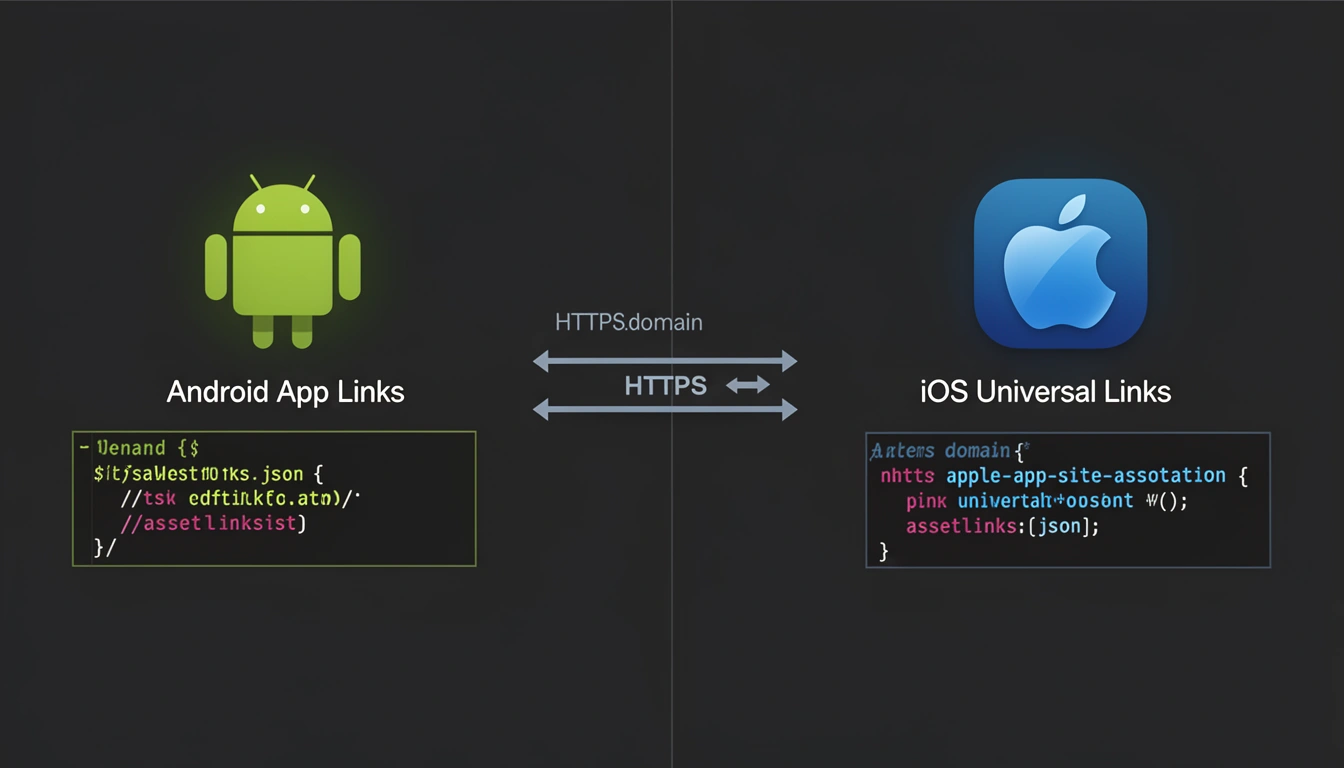
App Links (Android's verified deep linking standard) and Universal Links (iOS's equivalent) let a URL open directly inside a native app instead of a browser, with no confirmation dialog. Android App Links prove ownership through an assetlinks.json file and Intent Filter verification; iOS Universal Links prove ownership through an apple-app-site-association file and the Associated Domains entitlement. Both require an HTTPS domain you control. They are not interchangeable — App Links run on Android 6.0 and newer, Universal Links on iOS 9 and newer — so a cross-platform app needs both configured on the same domain.
What changed: This guide has been re-checked against current iOS and Android behavior for 2026. The core implementation steps for App Links and Universal Links are unchanged, but we've added a clearer breakdown of how generic "deep links" differ from verified App Links/Universal Links, a build-vs-buy platform comparison, and more edge cases pulled from production debugging.
What Are App Links and Universal Links? Platform-Specific Standards Explained
App Links and Universal Links solve the same problem with different technical implementations. When a user taps a link in an email, SMS, or web page, these standards open the URL directly in your native app instead of a mobile browser — assuming the app is installed.
The mental model that matters:
- Android App Links: Google's standard, verified through a JSON file at
/.well-known/assetlinks.json. - iOS Universal Links: Apple's standard, verified through a JSON file at
/.well-known/apple-app-site-association.
Both are verified deep links — the operating system confirms you own both the domain and the app before allowing a seamless handoff. This stops a malicious app from hijacking your web traffic.
Without verification, you're stuck with URI schemes (myapp://), which trigger confirmation dialogs, fail silently if the app isn't installed, and don't work in many contexts like Chrome Custom Tabs or in-app browsers.
Key Technical Differences Between App Links and Universal Links
| Feature | Android App Links | iOS Universal Links |
|---|---|---|
| OS Support | Android 6.0+ (API 23+) | iOS 9.0+ |
| Verification File | assetlinks.json | apple-app-site-association |
| File Location | /.well-known/assetlinks.json | /.well-known/apple-app-site-association or root |
| Content-Type | application/json | application/json or application/pkcs7-mime |
| Requires HTTPS | Yes | Yes |
| Fallback Handling | Opens in browser automatically | Opens in Safari automatically |
| Verification Timing | App install + periodic checks | App install + updates |
The verification files serve the same purpose with different syntax. Google wants proof your app should handle your domain. Apple wants the same proof, formatted differently.
Universal Links vs Deep Links: What's Actually Different?
A "deep link" is any URL that opens a specific screen inside an app; a Universal Link (or its Android equivalent, an App Link) is a deep link the operating system has cryptographically verified belongs to that app. Every Universal Link is a deep link, but not every deep link is a Universal Link.
Three tiers matter in practice:
- Custom URI scheme deep links (
myapp://product/123) — work only if the app is already installed and something explicitly triggers them. No OS-level verification, so they can trigger "Open in App?" prompts or fail silently. - Universal Links / App Links — the verified layer covered in this guide. Same URL format as your website (
https://example.com/product/123), no prompt. - Deferred deep links — carry context through an app store install for users who don't have the app yet. Neither App Links nor Universal Links do this on their own.
If you're comparing "universal links vs deep links" for an architecture decision, the real question is usually whether you need verified, prompt-free opening (use Universal Links/App Links) or context-preserving installs for brand-new users (add deferred deep linking on top). For how the layers combine, see deep linking vs deferred deep linking.
How Do You Implement Android App Links and iOS Universal Links?
Both systems follow a similar flow — declare intent, host a verification file, handle the incoming link in code — but the implementation details diverge.
Android App Links Implementation
Step 1: Configure Intent Filters
In your AndroidManifest.xml, declare which URLs your app handles:
<activity android:name=".ProductActivity">
    <intent-filter android:autoVerify="true">
        <action android:name="android.intent.action.VIEW" />
        <category android:name="android.intent.category.DEFAULT" />
        <category android:name="android.intent.category.BROWSABLE" />
        <data
            android:scheme="https"
            android:host="example.com"
            android:pathPrefix="/products" />
    </intent-filter>
</activity>
The android:autoVerify="true" attribute triggers domain verification at install time.
Step 2: Host Digital Asset Links File
Place this at https://example.com/.well-known/assetlinks.json:
[{
  "relation": ["delegate_permission/common.handle_all_urls"],
  "target": {
    "namespace": "android_app",
    "package_name": "com.example.app",
    "sha256_cert_fingerprints": [
      "14:6D:E9:83:C5:73:06:50:D8:EE:B9:95:2F:34:FC:64:16:A0:83:42:E6:1D:BE:A8:8A:04:96:B2:3F:CF:44:E5"
    ]
  }
}]
The sha256_cert_fingerprints must match your app's signing certificate. Android validates this when the app is installed.
Step 3: Handle Incoming Links
override fun onCreate(savedInstanceState: Bundle?) {
    super.onCreate(savedInstanceState)
    handleIntent(intent)
}

override fun onNewIntent(intent: Intent) {
    super.onNewIntent(intent)
    handleIntent(intent)
}

private fun handleIntent(intent: Intent) {
    val appLinkData: Uri? = intent.data
    if (appLinkData != null) {
        val productId = appLinkData.lastPathSegment
        // Navigate to product screen
    }
}
iOS Universal Links Implementation (Applinks Setup)
Step 1: Configure Associated Domains
In Xcode, add your domain to the Associated Domains capability. The prefix is literally the word applinks, which is the entitlement key Apple uses to distinguish Universal Links from other associated-domain services:
applinks:example.com
This goes in your entitlements file (YourApp.entitlements):
<key>com.apple.developer.associated-domains</key>
<array>
    <string>applinks:example.com</string>
</array>
Step 2: Host the AASA File
Create https://example.com/.well-known/apple-app-site-association (no file extension):
{
  "applinks": {
    "apps": [],
    "details": [
      {
        "appID": "TEAMID.com.example.app",
        "paths": ["/products/*"]
      }
    ]
  }
}
The appID combines your Team ID (from your Apple Developer account) with your bundle identifier. iOS downloads this file when your app is installed.
Step 3: Handle Universal Links
func application(_ application: UIApplication,
                 continue userActivity: NSUserActivity,
                 restorationHandler: @escaping ([UIUserActivityRestoring]?) -> Void) -> Bool {
    guard userActivity.activityType == NSUserActivityTypeBrowsingWeb,
          let url = userActivity.webpageURL else {
        return false
    }

    if url.pathComponents.contains("products") {
        let productId = url.lastPathComponent
        // Navigate to product screen
    }

    return true
}
For SwiftUI apps using scenes:
WindowGroup {
    ContentView()
        .onOpenURL { url in
            // Handle universal link
        }
}
What Are the Most Common App Links and Universal Links Mistakes?
After implementing both systems in production, these are the issues that consistently trip up developers:
1. HTTPS Misconfiguration
Both platforms require valid HTTPS certificates. Self-signed certificates, expired certificates, or broken certificate chains silently break verification. Validate your setup with an SSL checker before debugging app code.
Edge case: if you're behind a CDN or reverse proxy, make sure the verification files bypass caching and transformations. CDNs sometimes rewrite JSON responses, breaking signature verification.
2. Android Certificate Fingerprint Mismatches
The most common Android App Links failure: using debug keystore fingerprints in production, or forgetting to add the release certificate fingerprint. Get your release fingerprint with:
keytool -list -v -keystore release.keystore
If you use Google Play App Signing, you need both your upload key fingerprint and the app signing key fingerprint from Play Console. Add both to assetlinks.json.
3. iOS Path Matching Gotchas
Universal Links path patterns are finicky:
"/products/*"matches/products/123but not/products."/products*"matches both/productsand/products/123.- Query parameters are ignored in path matching.
Exclusion patterns work with NOT:
"paths": ["/buy/*", "NOT /buy/exclude/*"]
Test thoroughly — iOS caches AASA files aggressively.
4. Testing in the Wrong Context
Universal Links don't fire when you tap a link on the same domain in Safari. If you're on example.com and tap a link to example.com/products/123, Safari opens it in the browser, not your app — Apple assumes you want to stay in Safari.
Test from different contexts:
- Notes app
- Messages
- Third-party apps (Slack, Email)
- Safari Reader Mode
On Android, test from Gmail, Chrome (not the same domain), and SMS. App Links behave differently in WebView contexts.
5. Subdomain and Multi-Domain Complications
Each subdomain needs its own verification file. If you support shop.example.com and example.com, you need both:
https://example.com/.well-known/assetlinks.jsonhttps://shop.example.com/.well-known/assetlinks.json
On iOS, list each subdomain in Associated Domains:
applinks:example.com
applinks:shop.example.com
Wildcard subdomains are supported on iOS (applinks:*.example.com) but require careful AASA configuration.
6. Link Shorteners Breaking Verification
If you use a generic URL shortener, App Links and Universal Links won't work unless the shortener's domain is also configured — the OS validates the shortened URL's domain, not the final destination. Use a shortener that supports custom domains for deep linking, so you can host verification files on your own branded short domain.
7. Skipping the Android App Links Assistant
Android Studio's App Links Assistant (Tools > App Links Assistant) generates the intent filter and an assetlinks.json template, and lets you test the URL directly from the IDE. Skipping it and hand-writing the manifest is the most common source of typos in android:host and pathPrefix.
App Deep Linking Platform Comparison 2026: Build vs Buy
Most teams choose between three approaches for App Links and Universal Links at scale: hand-rolling verification files and routing logic, migrating off a discontinued tool, or using a dedicated deep linking platform. Each carries a different maintenance cost.
| Approach | Verification file hosting | Multi-platform routing | Click analytics | Ongoing maintenance |
|---|---|---|---|---|
| DIY / self-hosted | You manage manually | You build it | You build it | High — you own every edge case |
| Firebase Dynamic Links | Discontinued | Discontinued | Discontinued | None — the service is no longer available |
| Generic URL shortener | Not supported on shared domains | Limited or none | Basic click counts only | Low, but App Links/Universal Links won't verify |
| Dedicated deep linking platform | Hosted for you on your custom domain | Built in | Link-level, with device and geo detail | Low — configuration, not infrastructure |
If you previously relied on Firebase Dynamic Links, that service is no longer available — see our Firebase Dynamic Links migration guide or the list of Firebase Dynamic Links alternatives for a side-by-side comparison.
What Are the Best Practices for Running App Links and Universal Links in Production?
Verify Early, Test Often
Once you’ve set up your deep link configuration files, you can go to their respective URLs to verify that they’ve been configured correctly.
Monitor Verification File Availability
Set up uptime monitoring for your assetlinks.json and AASA files. If these go down or return 404s, new installs won't establish verified links. Check that:
- Files return
200 OK. - Content-Type is
application/json. - No redirects occur (Android may follow 301/302, iOS won't).
- Response size is under 128 KB (iOS limit).
Version Your AASA File Carefully
iOS caches AASA files for days or weeks. When you update path patterns, existing users may not see the change immediately. Plan for a gradual rollout or use server-side routing to handle both old and new patterns during the transition.
Implement Fallback Logic
Even with perfect configuration, App Links and Universal Links can fail because a user explicitly chose "Open in Browser," a corporate proxy stripped headers, or an OS bug got in the way. Always include a web fallback that handles the same deep link parameters — attempt a final URI-scheme fallback, show app store badges, and display meaningful content for web users.
Track Link Performance
Instrument your deep link handlers to track app opens via verified links vs. URI schemes vs. direct launch, failed deep link attempts, and time-to-handle metrics. Use link-level analytics to see where users drop off in the flow.
When Should You Not Use App Links or Universal Links?
1. You Don't Control the Domain
If you're on a third-party platform where you can't upload custom files to /.well-known/, verified deep links won't work. You need full control over the web server on your domain.
2. Your App Isn't Distributed Through Official Stores
Both systems require your app to be installed from official app stores. TestFlight and internal builds still work with Universal Links, but sideloaded APKs or enterprise distribution can fail verification.
3. Cross-App Communication
If you're building links for other apps to call yours — payment callbacks, OAuth redirects — URI schemes (yourapp://callback) are more reliable. App Links and Universal Links are designed for web-to-app transitions, not app-to-app.
4. You Need to Test Quickly
Setting up verified links requires domain access, certificate management, and app store builds. If you need to test deep linking logic fast, start with URI schemes and migrate to verified links before launch.
5. Web-Only Flows
If a feature is intentionally web-only, like a password reset flow that should never open in-app, exclude those paths from your verification files. Don't assume every link should deep link.
How Do App Links and Universal Links Fit Into a Full Deep Linking Stack?
Verified deep links handle the "installed app" scenario well, but they're only one piece of a complete strategy.
The Verified Link Foundation
App Links and Universal Links give instant, seamless handoff when the app is already installed — critical for email campaigns, push notification fallbacks, social post attribution, and referral links.
Deferred Deep Links for New Users
Verified links don't solve the "app not installed" problem — the link just opens in a browser. A complete system layers: (1) App Links/Universal Links for installed users, (2) smart web pages that detect install status, (3) deferred deep links that preserve context through install, and (4) attribution tracking across the whole journey.
Analytics and Attribution Layer
Raw App Links and Universal Links don't provide click tracking, geography, or device data on their own. Wrapping them in a URL shortener with link-level analytics gives you visibility into click-through rate before app open, iOS vs. Android vs. desktop split, geographic performance, and time-to-conversion.
Multi-Platform Routing
Production systems need device-based routing: one shortened URL that opens the Android app via App Links, the iOS app via Universal Links, and sends desktop visitors to a landing page — while handling edge cases like tablets or older browsers. Building this manually takes real infrastructure; a smart URL shortener handles detection, fallback, and routing for you.
Compliance and Brand Control
For SMS campaigns in regulated markets, you need compliance-ready short URLs with custom domains and header support. Generic shorteners don't support the domain verification files App Links and Universal Links depend on. Using branded short domains gives you full control over verification files, brand consistency, and trust signals for users.
Frequently Asked Questions
What is a Universal Link on iOS?
A Universal Link is a standard https:// URL that iOS recognizes as belonging to your app because you've hosted an apple-app-site-association file on your domain and added the matching Associated Domains entitlement. Tapping it opens your app directly, with no confirmation dialog, if the app is installed — otherwise it opens in Safari.
What is an App Link on Android?
An App Link is Android's equivalent of a Universal Link: a normal HTTPS URL that opens your app directly once Android has verified you own the domain via an assetlinks.json file and an intent filter with android:autoVerify="true". If verification fails or the app isn't installed, the link opens in a browser instead.
What's the difference between a deep link and a Universal Link?
"Deep link" is the umbrella term for any URL that opens specific in-app content, including custom URI schemes. A Universal Link is a specific, OS-verified type of deep link that uses your website's own HTTPS domain and skips confirmation prompts. Every Universal Link is a deep link; not every deep link is a Universal Link.
Do Universal Links work on Android?
No. "Universal Links" is Apple's iOS-only term. Android's equivalent standard is called App Links, and it uses different verification files (assetlinks.json instead of apple-app-site-association). The end-user experience — instant, prompt-free app opening — is the same, but the two are configured separately per platform.
What does "applinks" mean in an iOS entitlements file?
In Xcode's Associated Domains capability, applinks: is the required prefix that tells iOS a domain should be checked for Universal Links support, as opposed to other associated-domain services like shared credentials. You'll see it written as applinks:example.com in your entitlements file.
Can I use both App Links and Universal Links for the same URL?
Yes, and you should. A single https://example.com/products/123 URL can work as both an Android App Link and an iOS Universal Link. Host both assetlinks.json and apple-app-site-association on the same domain — each OS checks its own file independently.
Why do my Universal Links stop working after I tap "Open in Safari"?
iOS remembers that choice. If a user long-presses a Universal Link and picks "Open in Safari," or taps the breadcrumb back to Safari, iOS disables Universal Links for that domain until the user manually re-enables them by long-pressing a link and choosing "Open in [App Name]." There's no programmatic fix.
Do App Links work inside WebViews or Chrome Custom Tabs?
It depends on context. In Chrome Custom Tabs, App Links typically work. In WebView components used by in-app browsers (Facebook, Twitter, Instagram), they often don't. For reliable opening from social apps, consider alternative entry points like QR codes that open in the system browser.
Is there a smart tool that handles Universal Links, App Links, and deferred links together?
Yes — dedicated deep linking platforms host the verification files, route by platform, add deferred deep linking for uninstalled users, and provide click-level analytics from one dashboard, instead of you assembling and maintaining each piece separately.
How long does it take iOS to pick up AASA file changes?
iOS fetches the AASA file during app install and updates, then caches it for already-installed apps — often for several days, plus Apple's CDN caching on top. In practice, expect a day or two for changes to propagate to most real users; don't expect them to uninstall and reinstall to force a refresh.
How do I debug why App Links aren't verifying on Android?
Run adb shell pm get-app-links com.example.app to see verification status per domain. For more detail, run adb shell dumpsys package domain-preferred-apps. If the state shows "none" or "legacy_failure," check your assetlinks.json content and certificate fingerprints first.
Summary: Choosing the Right Approach for 2026
App Links and Universal Links aren't competing standards — they're complementary platform requirements. If you're building a cross-platform app, you need both; there's no either/or decision.
Key takeaways:
- App Links are Android's verified deep linking standard; Universal Links are iOS's equivalent.
- Both require HTTPS domains, server-hosted verification files, and correct app configuration.
- Implementation differs, but the end-user experience is identical: seamless web-to-app transitions.
- Common failures come from certificate mismatches, caching delays, and testing in the wrong context.
- Verified links are necessary but not sufficient — pair them with deferred deep linking, analytics, and smart routing.
For production systems, a deep linking platform that hosts verification files, handles multi-platform routing, and reports analytics automatically lets you focus on app features instead of infrastructure edge cases.
Starting from scratch, validate one platform's verification file setup first, then add the second. Test across multiple apps and contexts before shipping — and always implement a web fallback, because no deep linking system is 100% reliable across every environment.
Published with LeafPad