
At Smler, we help you build one smart short link that behaves differently depending on where it's clicked. This guide covers Device-Based Routing — how it works, how to set it up, and how to redirect users to the right app store based on their device without building separate links for every platform.
What changed: This guide has been refreshed with clearer setup steps, a comparison against deferred deep linking, and answers to the most common questions we hear from teams configuring device routing today. The core feature and workflow described below still match what's live in Smler.
⭐ What Is Device-Based Routing?
Device-based routing is a Smler feature that lets a single short link send users to different destinations depending on their platform. Instead of running separate links for Android, iOS, and web traffic, you configure one link with rules like:
Android users → Google Play Store
iOS users → Apple App Store
Web/other devices → Your website or landing page
Because every visitor lands on the destination that actually applies to their device, conversion rates on install campaigns, product launches, and marketing pushes improve without any extra work from the user.
🔄 Note: Device-based routing is not the same as deferred deep linking. Deferred deep linking sends a user to a specific screen inside your app even if the app wasn't installed at the time of the click. We cover that separately in our guide: Deferred Deep Linking Setup – Click to Learn More
How Do I Redirect Users to the Right App Store Based on Their Device?
To redirect users to the correct app store automatically, create a Smler link, turn on Device Routing in the edit screen, and assign a separate destination URL for Android, iOS, and web. Smler detects the visitor's device at the moment they click and forwards them to the matching URL — no code, no app SDK, and no manual redirect logic on your end.
This is the setup most teams use for:
App install campaigns running across email, SMS, and social
QR codes on packaging or print ads that need to work for every device
Referral or share links where the recipient's device is unknown in advance
How to Set Up Device-Based Routing on Smler
Setting this up takes less than a minute once you know where the options live.
Step 1: Generate a New Link
Create a short link on Smler the same way you normally would.
Step 2: Open the Link for Editing
Go to the edit section of the link you just created.
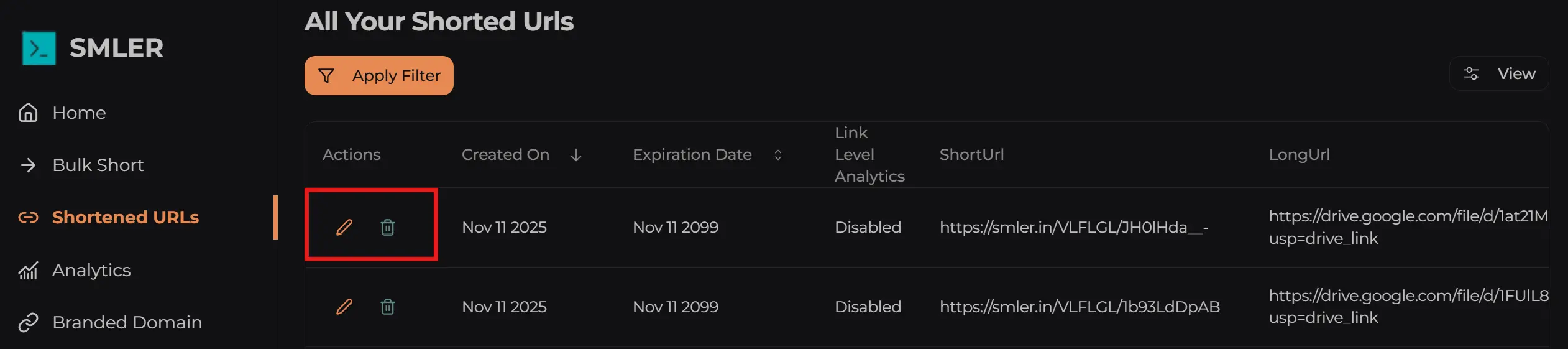
Step 3: Enable Device Routing
Inside the edit screen, select Device Routing.
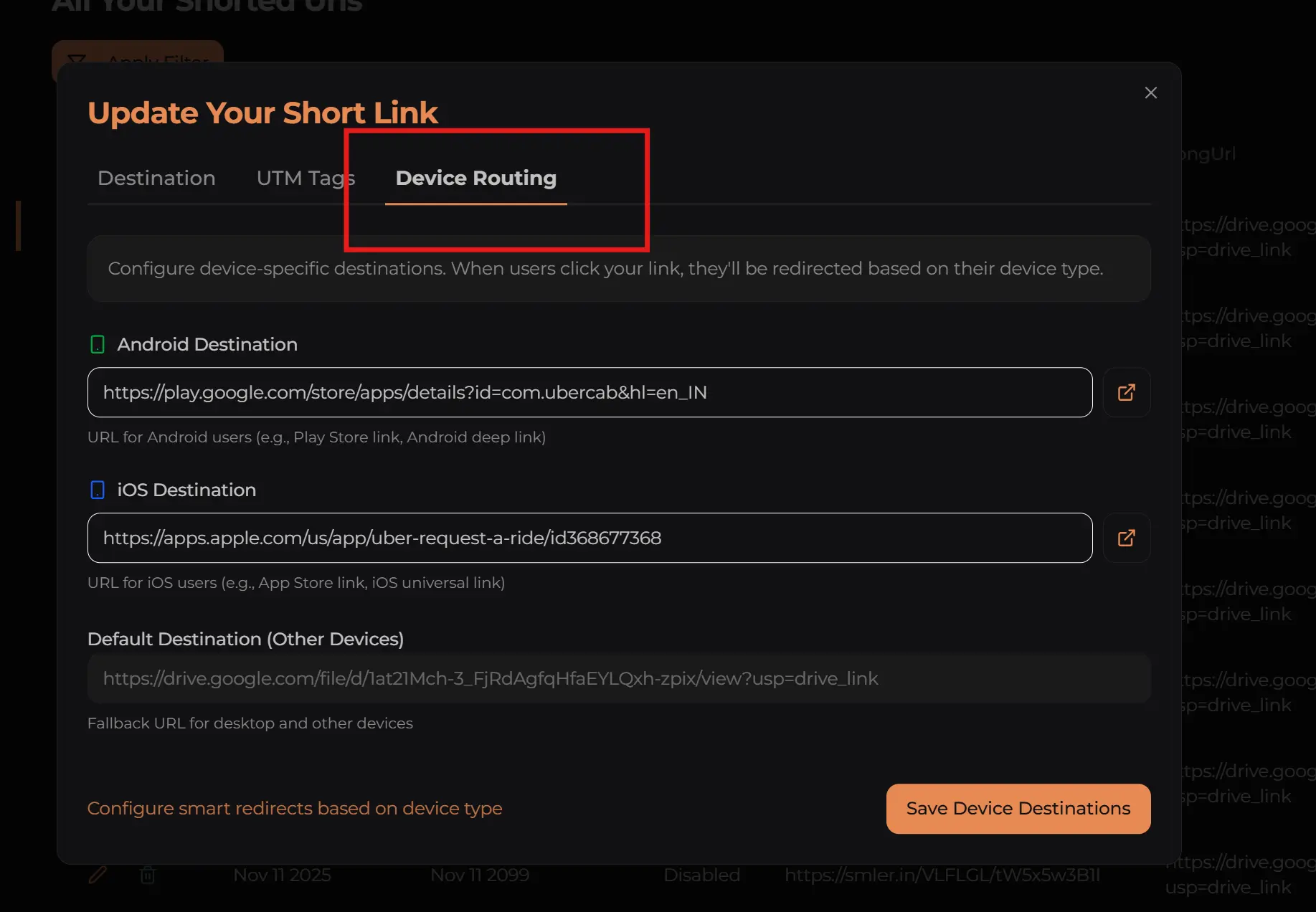
Step 4: Add Platform-Specific URLs
You'll see fields for each platform:
Android URL — usually your Play Store listing
iOS URL — usually your App Store listing
Fallback/Web URL — where desktop and unrecognized devices land
Always set the fallback URL, even if most of your traffic is mobile. Without it, any visitor on a device Smler can't confidently classify — some tablets, in-app browsers, or older devices — falls through to your link's default destination instead of a page you actually chose.
Step 5: Save Changes
Click Save. Your device-aware link is now configured and ready to share.
Why Does Routing Take a Few Minutes to Update?
Smler uses caching layers to keep redirects fast for visitors worldwide. Because of this, changes to a link's routing rules don't apply instantly everywhere — they need a short window to propagate through the cache before every region sees the new configuration. In practice this is a matter of minutes, not hours.
To test accurately after making a change:
Give it a few minutes before testing on live devices
Open the same link on both Android and iOS
Confirm each device lands on the destination you expect
Once the cache updates, the routing stays consistent and fast across regions with no further action needed.
How Do I Test a Device-Routed Link Correctly?
Test on real devices over a real mobile connection, not just a desktop browser set to "mobile view." Emulators and browser dev tools can misreport the device signals Smler uses to route traffic, which leads to false negatives during testing.
Open the link on an Android phone → should land on the Play Store
Open it on an iPhone → should land on the App Store
Open it on desktop → should land on your fallback URL
Open it inside a messaging app's in-app browser (WhatsApp, Instagram) → confirm it still resolves correctly, since in-app browsers sometimes report device info differently than the native browser
If any of these don't match, re-check that each platform field was saved correctly and that you waited long enough for the cache to refresh before retesting.
Device-Based Routing vs. Deferred Deep Linking: Which Do You Need?
Use device-based routing when you only need to send people to the right store or homepage. Use deferred deep linking when you need people to land on a specific screen inside the app itself, even on a first install.
| Need | Best Fit |
|---|---|
| Send Android users to Play Store, iOS users to App Store | Device-Based Routing |
| Send desktop users to a website instead of a store | Device-Based Routing |
| Open a specific product or content page inside the app after install | Deferred Deep Linking |
| Track a user's journey from ad click to in-app action | Deferred Deep Linking |
Many campaigns use both together: device routing gets the user to the correct store, and deferred deep linking takes over once the app is installed and opened. Read the full setup here: Learn About Deferred Deep Linking
Why Use Device Routing?
Better user experience — no dead-end links or manual "search for our app" instructions
Higher app install conversion, since users never see a store page for the wrong platform
Smoother marketing funnels across email, SMS, ads, and social with one link instead of several
One link for all platforms, which simplifies QR codes and print materials
Cleaner campaign tracking, since all clicks roll up under a single short link
Whether you're promoting an app, running paid ads, or launching a new feature, device routing makes a single link do the work of three.
FAQ: Device-Based Redirects on Smler
How do I redirect users to the right app store based on their device?
Create a Smler link, enable Device Routing in the edit screen, and set separate URLs for Android, iOS, and web/fallback. Smler detects the visitor's device on click and sends them straight to the matching destination automatically.
Is device-based routing free on Smler?
Device-based routing is included as part of Smler's link features rather than sold as a separate add-on. Check your current plan in the Smler dashboard for the exact link and feature limits available to your account.
Does device routing work for both Android and iOS the same way?
Yes. You configure both platforms independently in the same link, so Android traffic goes to your Play Store URL and iOS traffic goes to your App Store URL, with a separate fallback for everything else.
What happens if I don't set a fallback URL?
Devices that Smler can't classify with confidence — some tablets, older browsers, or in-app browsers — will fall through to your link's default destination instead of a page you intentionally chose, so it's best practice to always set one.
Start Using Device Routing Today
Device-based routing is live for all Smler users. Create your link, configure the routing rules, give it a few minutes to propagate, and you're ready to share one link across every platform.
If you run into any issue while configuring it, reach out to us — we'll help you get it set up and answer any questions along the way.
Published with LeafPad