
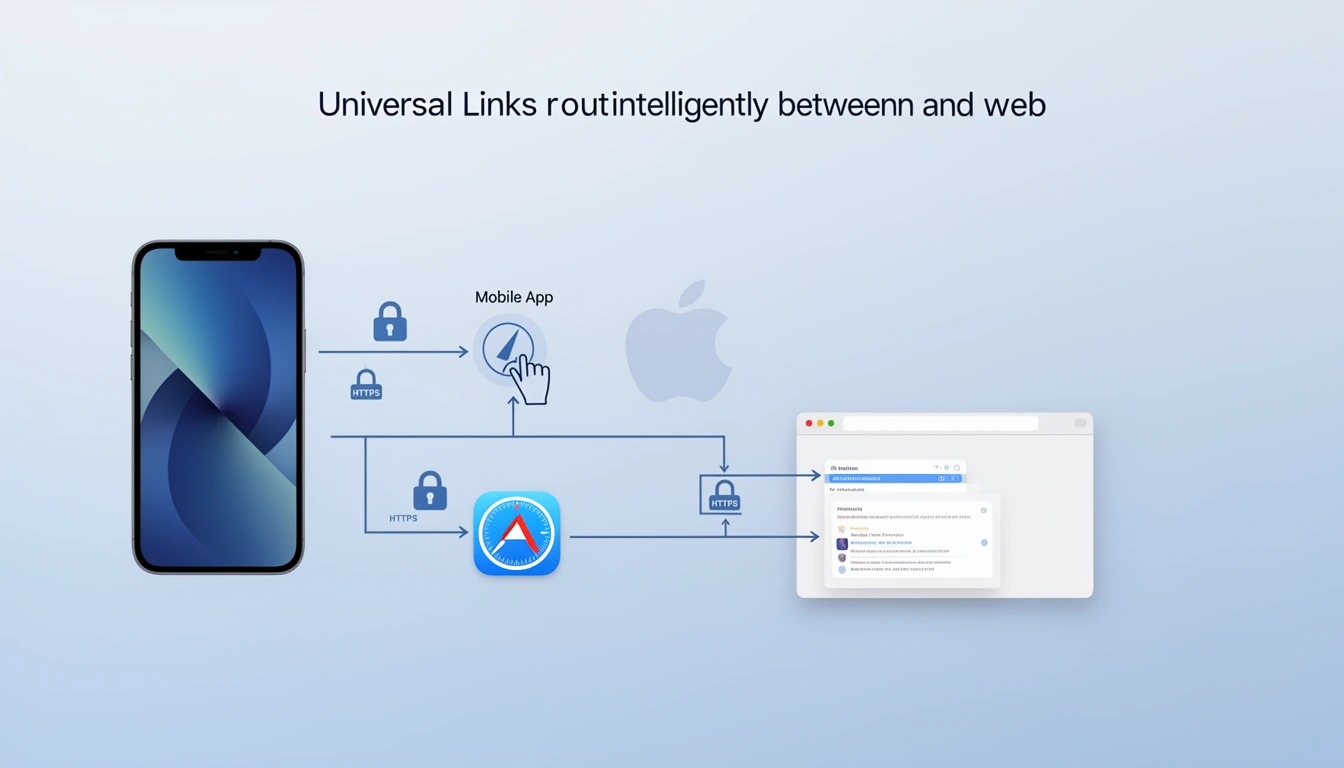
When Apple introduced Universal Links in iOS 9 back in 2015, they fundamentally changed how apps and websites interact. Universal Links remain the gold standard for seamless user experiences in iOS apps. If you've ever clicked a link and seamlessly opened an app instead of a website, you've experienced Universal Links in action.
This comprehensive guide will walk you through what Universal Links are, their evolution, how they work under the hood, and why they're essential for modern mobile app strategies.
What Are Universal Links?
Universal Links are standard web URLs (https://) that work for both your website and your iOS app. Unlike custom URL schemes (like myapp://), Universal Links use regular HTTPS links that intelligently route users to your app if it's installed, or to your website if it's not.
For example, a Universal Link like https://yourdomain.com/products/shoes will:
Open directly in your iOS app if it's installed
Open in Safari if the app isn't installed
Work seamlessly without showing any app store redirect prompts
This creates a frictionless user experience that's crucial for conversion rates and user retention. Modern URL shortening platforms like Smler's deep linking solution make implementing Universal Links even easier for businesses.
The History: Why Apple Created Universal Links
The Problem with Custom URL Schemes
Before Universal Links, developers relied on custom URL schemes to open apps. While functional, this approach had significant drawbacks:
Poor User Experience: If the app wasn't installed, users saw ugly error messages instead of graceful fallbacks
Security Vulnerabilities: Any app could register any URL scheme, creating opportunities for malicious apps to hijack links intended for legitimate apps
No Domain Verification: There was no way to verify that the app claiming a URL scheme actually owned the associated domain
Broken Web Links: Custom schemes didn't work as regular web links, breaking standard web functionality
Apple's Solution: WWDC
At the Worldwide Developers Conference (WWDC) 2015, Apple introduced Universal Links as part of iOS 9. The announcement was part of a broader initiative to improve continuity between web and app experiences, alongside features like Safari View Controller and Spotlight Search indexing.
The key innovation was requiring domain verification apps could only handle links from domains they provably controlled. This addressed security concerns while creating a superior user experience.
How Universal Links Work: The Technical Deep Dive
Understanding the mechanics of Universal Links helps you implement them correctly. Here's what happens behind the scenes, broken down into simple terms.
Step 1: The Apple App Site Association File
The foundation of Universal Links is the Apple App Site Association (AASA) file. This is a JSON file that you host on your web server at a specific location:
https://yourdomain.com/.well-known/apple-app-site-associationor alternatively:
https://yourdomain.com/apple-app-site-associationThis file tells iOS which apps are authorized to handle links from your domain. Here's a simplified example:
{
  "applinks": {
    "apps": [],
    "details": [
      {
        "appIDs": ["TEAMID.com.yourcompany.yourapp"],
        "paths": [
          "/products/*",
          "/blog/*"
        ]
      }
    ]
  }
}
Key Requirements:
Must be served over HTTPS (not HTTP)
Content-Type should be
application/jsonNo redirects allowed: the file must be at the exact URL
File size should be under 128 KB
Step 2: iOS Downloads and Validates the File
When a user installs or updates your app from the App Store, iOS automatically:
Reads the Associated Domains entitlement in your app
Downloads the AASA file from each domain you've specified
Validates that the file is properly formatted and signed
Caches the file on the device for future use
This happens in the background without user intervention. Apple's associated domains documentation provides technical details on this process.
Important: iOS only downloads the AASA file during app installation/update, not every time a link is clicked. This is why it can take time for Universal Link changes to propagate to all users.
Step 3: Configuring Your iOS App
On the app side, developers must configure Associated Domains in Xcode. This involves:
Adding the Associated Domains capability to your app
Specifying the domains (e.g.
applinks:yourdomain.com)Implementing the
application(_:continue:restorationHandler:)method in your AppDelegate to handle incoming Universal Links
When a Universal Link is clicked, iOS calls this method with the URL, allowing your app to parse it and navigate to the appropriate screen.
Step 4: The User Clicks a Link
Here's what happens when someone taps a Universal Link:
iOS Checks the Domain: The system checks if any installed app has claimed this domain via Associated Domains
Matches Against AASA File: iOS verifies the URL path matches the patterns in the cached AASA file
Decision Point: If there's a match and the app is installed, iOS opens the app. Otherwise, it opens Safari
App Handles the Link: Your app receives the full URL and can route the user to the appropriate content
This entire process happens in milliseconds, creating an instant and seamless experience.
Universal Links vs. Deferred Deep Links
While Universal Links handle installed app scenarios perfectly, they don't address what happens when a user clicks a link but doesn't have your app installed. This is where deferred deep linking comes in.
Universal Links: Direct users to your app if it's already installed
Deferred Deep Links: Remember the intended destination, send users to the App Store to install your app, then open the app to the original content after installation
For a complete mobile strategy, you need both. Platforms like Smler provide deferred deep linking capabilities that work seamlessly with Universal Links to cover all scenarios.
Common Universal Links Implementation Challenges
1. The AASA File Isn't Being Downloaded
This is the most common issue. Verify:
The file is accessible at the correct URL
Your server returns the file with HTTPS (SSL certificate is valid)
No redirects are occurring
The Content-Type header is correct
Use Apple's AASA validator tools to test your file.
2. Links Open in Safari Instead of the App
If Universal Links open in Safari rather than your app, check:
The Associated Domains entitlement is correctly configured in Xcode
You've installed a fresh build after adding Associated Domains
The URL path matches patterns in your AASA file
You're testing from an external source (Universal Links don't work within Safari's address bar or when tapped from the same domain)
3. The Long-Press Menu Shows Wrong Options
When users long-press a Universal Link, they should see an option to open in your app. If not, iOS likely hasn't recognized the link as a Universal Link, indicating an AASA file or Associated Domains configuration issue.
4. Changes to AASA File Don't Take Effect
Remember that iOS caches the AASA file. To force an update:
Uninstall and reinstall the app (on test devices)
For production users, push an app update through the App Store
Wait 24-48 hours for Apple's CDN to propagate changes
Universal Links and URL Shorteners: A Powerful Combination
One challenge with Universal Links is that they require you to use your specific domain. This creates complications when:
You want to share links on platforms with character limits (like SMS or Twitter)
You need detailed analytics on link performance
You want to A/B test different destinations
You're running campaigns across multiple channels
This is where intelligent URL shorteners become invaluable. Smler's platform is specifically designed to work with Universal Links, allowing you to:
Create short, branded URLs that preserve Universal Link functionality
Use custom branded domains that maintain trust and recognition
Implement device-based routing for cross-platform apps
For developers migrating from other platforms, Smler also offers seamless Firebase Dynamic Links migration, which is crucial since Firebase shut down this service.
Universal Links Best Practices
1. Support Both www and non-www Domains
Users might access your links from either https://example.com or https://www.example.com. Add both to your Associated Domains and host AASA files at both locations.
2. Use Specific Path Patterns
Instead of claiming all paths with "*", specify exact patterns like "/products/*". This prevents conflicts and gives you more control over which links open in the app.
3. Implement Fallback Handling
Always handle cases where deep link parameters are missing or malformed. Your app should gracefully fall back to a default screen rather than crashing.
4. Test Across iOS Versions
Universal Links behavior has evolved across iOS versions. Test on multiple iOS versions, especially the latest iOS 18 and the minimum version you support.
5. Monitor Link Performance
Use analytics to track Universal Link success rates. Tools like Smler's analytics dashboard help you monitor which links are driving app opens versus web traffic.
6. Consider QR Codes for Offline Marketing
Universal Links work perfectly with QR codes for offline campaigns. You can create QR code deep links that direct users to your app or website seamlessly.
The Future of Universal Links
As we move through 2025, Universal Links continue to evolve. Apple has introduced enhancements like:
Improved Privacy Controls: Users have more granular control over which apps can handle which domains
Faster Validation: iOS 17 and 18 have optimized AASA file downloading and caching
Better Developer Tools: Xcode now provides improved debugging capabilities for Universal Links
Cross-Device Handoff: Universal Links work seamlessly with Handoff features across Apple devices
The trend is toward even more seamless integration between web and app experiences, making Universal Links more important than ever for iOS developers.
Implementing Universal Links: Quick Start Checklist
Ready to implement Universal Links? Here's your step-by-step checklist:
Create your AASA file with your app's team ID and bundle identifier
Upload the file to
https://yourdomain.com/.well-known/apple-app-site-associationVerify HTTPS is working correctly with a valid SSL certificate
Add Associated Domains capability in Xcode
Configure your domains in the format
applinks:yourdomain.comImplement the delegate method to handle incoming Universal Links
Build and install your app on a test device
Test from external sources like Notes, Messages, or Mail
Validate with tools to ensure everything is configured correctly
Monitor performance using analytics platforms
For businesses looking to implement Universal Links at scale without the complexity, platforms like Smler provide ready-to-use solutions that handle the technical complexity while giving you powerful analytics and management tools.
Conclusion: Why Universal Links Matter in 2025
Universal Links represent Apple's vision for a seamless web-to-app experience, and ten years after their introduction, they remain essential for any iOS app strategy. They improve user experience, increase conversion rates, enhance security, and provide the foundation for sophisticated deep linking strategies.
Whether you're building a new app or optimizing an existing one, implementing Universal Links correctly should be a top priority. Combined with deferred deep linking, analytics, and smart URL management through platforms like Smler, you can create user experiences that seamlessly bridge the gap between web and app.
The mobile landscape continues to evolve, but the principles behind Universal Links-security, user experience, and seamless transitions-remain constant. By mastering Universal Links, you're not just implementing a technical feature; you're investing in a better experience for your users.
Ready to implement Universal Links in your app? Start by exploring Smler's deep linking documentation or check out our iOS integration guide for hands-on implementation steps.
Published with LeafPad