
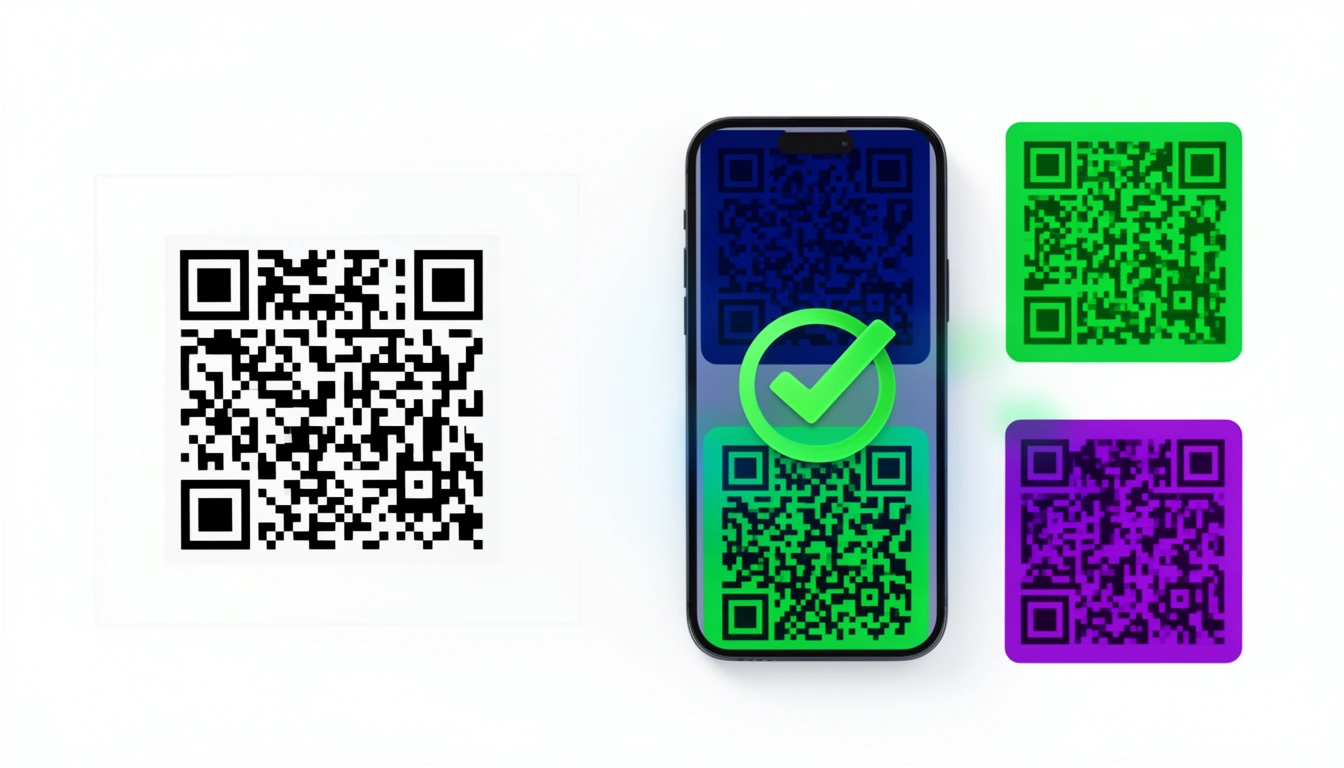
Can a QR code have a color background? Yes. QR codes do not have to be black and white, and that combination is really just a leftover industrial standard from the 1990s, not a scanning requirement. Modern phone cameras handle color fine.
The catch is that color and contrast are two different things. Get the color background wrong and the code can stop scanning even though it still looks perfectly fine to your eye. Here is what actually works, and what does not.
Can QR Codes Be Different Colors?
Yes, QR codes can be different colors, including the background, as long as the data modules stay noticeably darker than whatever sits behind them. A scanner does not care whether the dark parts are black, navy, or forest green, it only cares about the brightness gap between the dark areas and the light areas.
That is the whole trick behind a color QR code. The camera and its decoding software are not looking for "black," they are looking for contrast. Any two colors that create a strong enough light-to-dark difference will decode the same way pure black and white would.
Why Are Most QR Codes Black and White?

Most QR codes are black and white because that combination gives the sharpest possible edge for a scanner to lock onto, not because color is unsafe. When Denso Wave built the first QR codes in 1994 for Japanese auto factories, they needed something industrial scanners could read instantly in a dirty warehouse, so black on white became the safe default.
It stuck around because it worked, not because it was a design choice. Phone cameras and decoding software have improved a lot since then, so you are no longer locked into the default if you understand the rules that replace it.
What Colors Work for a QR Code Color Background?
A QR code color background works as long as it stays light enough that the data modules read as clearly darker, ideally with a large brightness gap between the two. Dark modules on a light background is the pattern every scanner expects, and pastel-on-pastel or similar-brightness combinations are the most common way this breaks.
Contrast is the only rule that matters. The scanner needs to see a clear difference between the modules and the background. If the contrast is low, the scan hesitates or fails outright.
Brightness beats hue. A dark red and a dark green can look like completely different colors to you, but if they share a similar brightness value, the scanner may read them as identical, and that breaks the code.
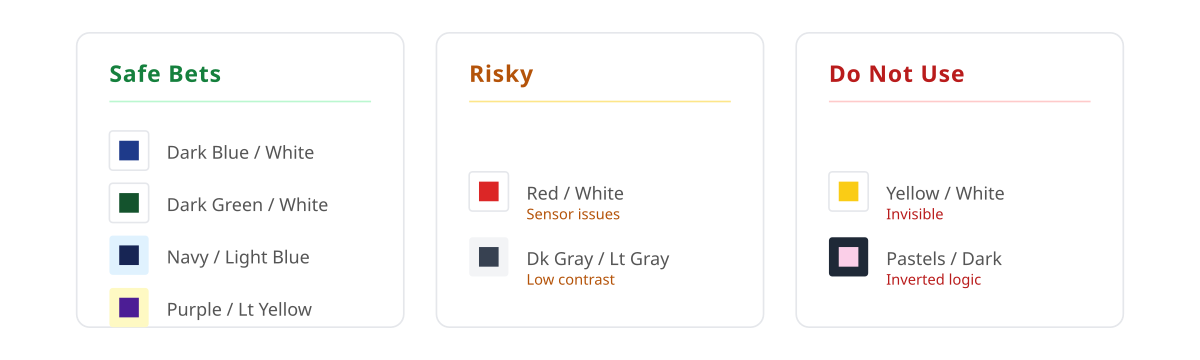
| Combination | Verdict | Why |
|---|---|---|
| Dark blue on white | Safe | Almost as much contrast as pure black |
| Dark green on white | Safe | Good fit for eco or natural branding |
| Navy on light blue | Safe | Professional look, still high contrast |
| Dark purple on light yellow | Safe | Distinctive and high contrast |
| Red on white | Risky | Some camera sensors struggle with red under artificial light |
| Dark gray on light gray | Risky | Works, but leaves almost no margin for error |
| Yellow on white | Avoid | Barely visible to a scanner |
| Pastels on a dark background | Avoid | Scanners expect the dark area to be the code, not the background |
| Metallic inks or foils | Avoid | Glare destroys the pattern |
If you look at the types of QR codes, error correction matters here too. Boosting error correction to "High" lets you get away with slightly lower contrast, but you sacrifice some data density in exchange.
What Happens with QR Code Inverted Colors?
Inverted QR codes, meaning light modules on a dark background, fail on most standard scanning apps because that software is built to hunt for dark shapes on a light field. Flip that expectation and the scanner often stares at the code and does nothing at all, no matter how sharp the print looks.
White code on a black poster looks striking, and it is also one of the fastest ways to guarantee zero scans. A handful of specialized scanning apps can handle inverted colors, but you cannot count on your customer having one installed. If a design absolutely requires an inverted look, test it on several ordinary phones before you commit to print, and be ready to flip back to dark-on-light if it fails.
How Do You Create a Colorful or Colored QR Code?
You create a colored QR code by picking a dark foreground and light background pair with strong contrast, generating the code at a high enough error correction level, and testing it on a real phone before you print anything. The color choice is creative, but the process that makes it scannable is mechanical.
- Pick your two colors first. Choose a dark foreground and light background from the safe list above, or run your own pair through a contrast check.
- Set error correction to Medium or High. This gives the code room to recover if lighting, printing, or a logo overlay slightly degrades the pattern.
- Generate the code. You can use Smler's free QR code generator with tracking to preview the colored code on your phone screen immediately, and track scans once it is live.
- Add a logo if you want one. If you are combining color with a center logo, follow the sizing and placement rules in the guide to creating QR codes with a logo in the center so the logo does not sit on top of the darkest modules.
- Test before you print. Scan the on-screen version, then scan a printed sample, since colors often shift once they go through CMYK conversion.
Advanced Color Techniques for QR Codes
| Technique | How it works | Tip |
|---|---|---|
| Gradients | The foreground color shifts across the code instead of staying flat | Run the gradient from dark to darker, never light to dark, since the lightest section can drop below the contrast threshold and fail |
| Center logos | A logo sits over the middle of the pattern, covering some data modules | Error correction can recover up to roughly 30% of covered data, but the logo should never share a color with the surrounding modules |
| Two-tone corners | The three large position markers are colored differently from the rest of the data | Keep both colors dark enough against the background so the scanner can still lock onto each marker |
Where Do Colored QR Codes Make Sense?
Colored QR codes make the most sense wherever a flat black square would clash with the packaging, print material, or brand it sits on, such as luxury goods, eco-friendly packaging, or multi-code event materials. It is a branding decision, not just decoration.
- Luxury: A plain black code looks cheap on a gold perfume box or premium packaging.
- Eco-products: Green codes on brown cardboard reinforce the brand's natural positioning.
- Events: Color-coded codes help attendees tell the Wi-Fi login apart from the schedule link at a glance, which pairs well with QR code deep links for offline marketing when each code needs to route somewhere different.
There are more interesting QR codes with creative designs here that show how far you can push the format once contrast is handled.
What Are the Most Common QR Code Color Mistakes?
The most common QR code color mistakes are picking two colors that are technically different but similarly bright, inverting the palette so light code sits on a dark background, and letting the background color run all the way to the edge with no quiet zone. All three cause silent failures where the code looks fine but will not scan.
Contrast was too low. A designer picks a "sophisticated" charcoal gray on a "soft" white. It looks great. It does not scan.
They inverted the colors. White code on a black poster looks striking, and it is also the fastest way to guarantee zero scans, as covered above.
They forgot the quiet zone. The quiet zone is the plain border around the code. If a background color runs right up to the edge, the scanner cannot find where the code starts.
They did not check for color blindness. If a colorblind user struggles to tell two colors apart, there is a good chance a scanner's contrast detection will struggle too.
How Do You Test a Colored QR Code Before Printing?
Test a colored QR code by scanning it on more than one phone, in low light, from an angle, and again after it has gone through print, since each of those conditions exposes a different way a color combination can fail. Screen colors and printed colors are rarely identical.
- Scan it with an older phone. If a five-year-old Android can read it, you are safe.
- Scan it in a dim room. Poor lighting is where marginal contrast falls apart first.
- Scan it from an angle. Hold the phone tilted rather than square to the code.
- Print a sample. RGB-to-CMYK conversion often darkens or muddies colors, so check the printed version, not just the screen preview.
Summary
You can use color, and you should if it fits your brand, but treat a colored QR code as a technical object first and a graphic element second. Build it with Smler's QR code generator, test it on a few different phones, print it, and scan the print. If it works, run with it. If it does not, go darker.
For more on how these fit into a broader strategy, see the benefits of QR codes for business or explore QR code use cases that boost sales.
Frequently Asked Questions
Do QR codes have to be black and white?
No. Black and white is the safest combination because it gives the sharpest contrast, but any dark foreground on a light background will scan just as reliably. What matters is the brightness gap between the two colors, not whether they are strictly black and white.
Can QR codes be different colors?
Yes. QR codes can use almost any color pair as long as the data modules read as clearly darker than the background. Scanners detect contrast, not specific hues, so dark blue, dark green, or dark purple all work as long as the light-to-dark gap stays strong.
Can QR codes be colored?
Yes, both the modules and the background can be colored. The safest approach is a dark, saturated foreground color on a light, plain background, generated at Medium or High error correction, then tested on a real phone screen and a printed sample before it goes into wide use.
What happens if a QR code uses inverted colors?
Inverted colors, meaning light modules on a dark background, fail on most standard scanning apps because they are built to look for dark shapes on light fields. Some specialized apps can handle it, but you cannot assume your audience has one, so inverted designs need heavy testing before you rely on them.
What is the best color for a QR code background?
The best QR code background is a plain, light, uncluttered color such as white, pale gray, or a light tint that leaves a strong contrast gap against a dark foreground. Avoid gradients, textures, or busy patterns behind the code, since they reduce the contrast a scanner relies on to find the pattern.
Published with LeafPad