
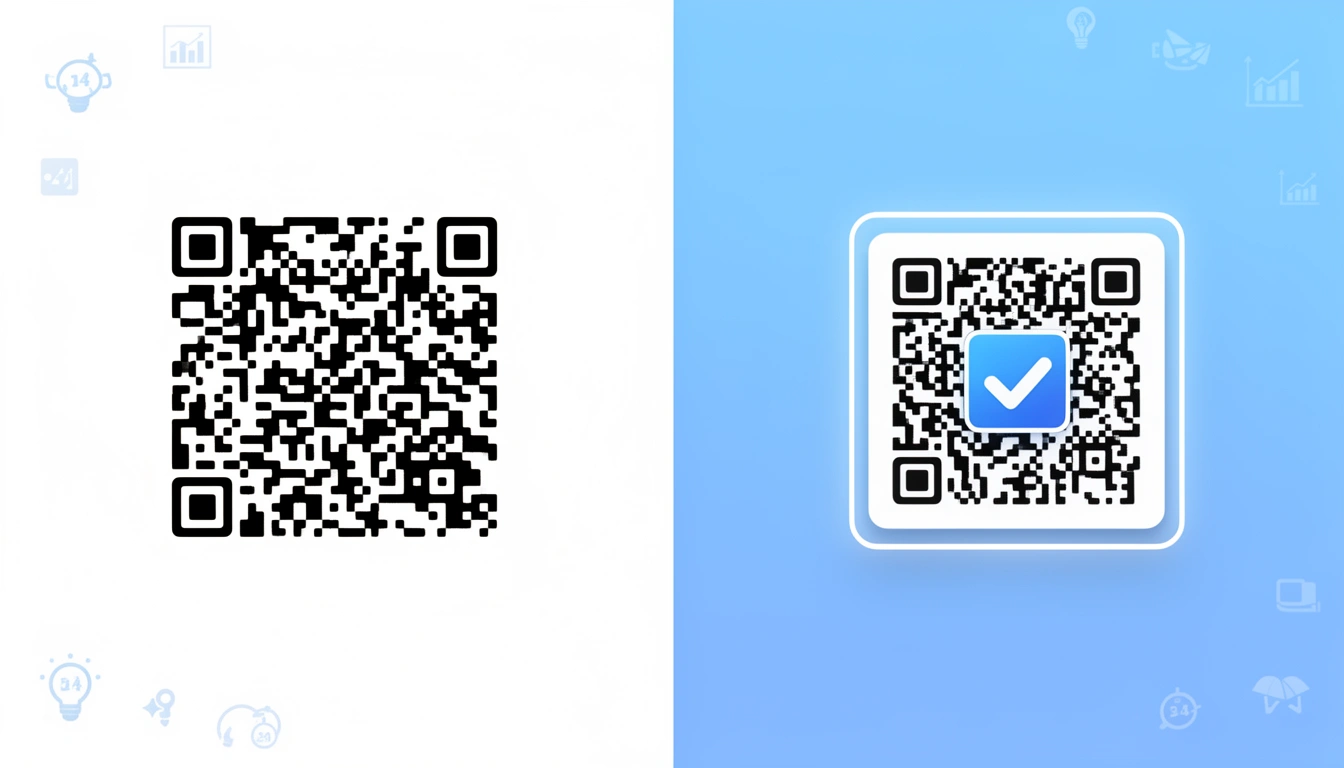
QR codes have become ubiquitous in marketing, payments, and app downloads. But in a sea of generic black-and-white squares, how do you make yours stand out? The answer: branded QR codes with your logo in the center.
Smler's QR code generator makes it simple to create branded QR. You can continue reading to know it's benefits. Head directly to the link if you wish to just generate link. We recommend creating an account and generating QR code so that you can also tracking for free
This comprehensive guide will show you how to create professional QR codes with custom logos that maintain scanability while reinforcing your brand identity. Whether you're promoting an app download, directing users to a landing page, or implementing QR code deep links for offline marketing, logo-enhanced QR codes can significantly improve scan rates and user trust.
Why Add a Logo to Your QR Code?
Before diving into the technical details, let's understand why branded QR codes matter:
Brand Recognition: A logo instantly identifies who created the QR code, building trust before the scan
Increased Scan Rates: Studies show branded QR codes receive 30-40% more scans than generic ones
Professional Appearance: Logo-enhanced codes look polished and intentional, not like afterthoughts
Security Perception: Users are more likely to scan codes from recognizable brands, reducing hesitation about malicious links
Multi-Channel Consistency: Your QR code becomes another brand touchpoint that reinforces visual identity
Understanding QR Code Error Correction
The secret to adding logos without breaking your QR code lies in error correction. QR codes have built-in redundancy that allows them to function even when partially obscured or damaged.
There are four error correction levels:
Level | Recovery Capacity | Best For |
|---|---|---|
L (Low) | ~7% | Clean environments, no logo |
M (Medium) | ~15% | Small logos |
Q (Quartile) | ~25% | Medium logos (recommended) |
H (High) | ~30% | Larger logos, harsh conditions |
Important: For QR codes with center logos, use Level H (High) error correction to ensure reliable scanning even with 20-30% of the code covered by your logo.
Best Practices for Logo Placement and Size
Optimal Logo Size
The golden rule: Your logo should cover no more than 20-30% of the total QR code area.
Safe zone: 15-20% coverage (highly recommended)
Maximum: 30% coverage with Level H error correction
Avoid: Anything beyond 30% risks scan failures
Logo Design Considerations
Not all logos work equally well in QR codes:
Simple is better: Logos with clean lines and solid colors scan more reliably than complex, detailed designs
High contrast: Ensure your logo contrasts well with the QR code's background
Shape matters: Square or circular logos work best in the center; avoid extremely wide or tall logos
File format: Use PNG with transparent backgrounds for seamless integration
Resolution: Minimum 300x300 pixels for print, higher for large formats
Strategic Placement
While center placement is most common, here are placement best practices:
Dead center: The safest option, as QR code corners contain critical positioning data
Avoid corners: Never place logos over the three corner squares (finder patterns)
White border: Add a small white border around your logo (2-3 pixels) to create separation from the QR pattern
Test thoroughly: Always test on multiple devices before mass printing
How to Create QR Codes with Logos Using Smler
Smler's QR code generator makes it simple to create branded QR codes with your logo. Here's how:
Step 1: Create Your Short Link
First, create a branded short link for tracking and flexibility:
Log into your Smler dashboard
Create a new short link with your destination URL
Customize with your custom domain for brand consistency
Add UTM parameters using the UTM builder to track campaign performance
Pro tip: Use short, memorable slugs for QR codes (e.g., yourbrand.com/menu instead of random characters) so users can manually type them if needed.
Step 2: Generate Your QR Code
Navigate to the QR Code Generator tool
Enter your Smler short link
Select High (H) error correction level
Choose your preferred size (minimum 300x300px for print)
Customize colors if desired (ensure sufficient contrast)
Step 3: Add Your Logo
Using the Smler QR generator interface:
Upload your logo file (PNG with transparent background recommended)
Position it in the center of the QR code
Adjust size to 15-20% of total QR code area
Add a white border around the logo for better definition
Preview the result
Step 4: Test Before Deploying
Critical step: Test your QR code on multiple devices:
iPhone (native camera app and third-party scanners)
Android devices (native camera and Google Lens)
Different lighting conditions
Various distances (near and far)
Print a test copy if using for physical materials
Advanced Techniques for Professional Results
1. Dynamic QR Codes vs. Static
Always use dynamic QR codes (short links) instead of static ones:
Editability: Change the destination URL without reprinting the QR code
Analytics: Track scans, locations, devices, and conversion with link-level analytics
A/B testing: Test different landing pages with the same QR code
Shorter patterns: Short URLs create simpler QR codes that scan faster
2. Deep Linking for App Downloads
If you're promoting a mobile app, combine branded QR codes with deep linking:
QR code scans automatically detect the user's device (iOS/Android)
If app is installed: Opens directly to specific in-app content
If app is not installed: Redirects to App Store or Play Store
After installation: Uses deferred deep links to route users to intended content
Set this up using Smler's device-based link routing feature.
3. Color Psychology and Branding
While black-and-white QR codes are standard, custom colors can enhance brand alignment:
Maintain contrast: Dark patterns on light backgrounds (minimum 40% contrast ratio)
Brand colors: Use your primary brand color for the QR pattern
Background options: White, light gray, or subtle brand color
Test extensively: Some scanners struggle with non-traditional colors
Safe color combinations:
Navy blue on white
Dark green on cream
Black on light brand color
Avoid: Light colors on light backgrounds, similar hue combinations
4. Size and Resolution Guidelines
Proper sizing ensures scannability across all use cases:
Use Case | Minimum Size | Recommended Size |
|---|---|---|
Business cards | 0.8 x 0.8 inches | 1 x 1 inches |
Flyers/brochures | 1.2 x 1.2 inches | 1.5 x 1.5 inches |
Posters (close viewing) | 2 x 2 inches | 3 x 3 inches |
Billboards/signage | 10% of viewing distance | 15% of viewing distance |
Product packaging | 0.8 x 0.8 inches | 1.2 x 1.2 inches |
Resolution formula: For print, generate QR codes at 10 times the final print size at 300 DPI. Example: For a 2-inch QR code, generate at 20 inches or 6000 pixels.
Common Mistakes to Avoid
1. Logo Too Large
Covering more than 30% of the QR code causes scan failures. Always test before mass production.
2. Low Contrast
Light gray logos on white backgrounds or similar color combinations make scanning impossible. Maintain strong contrast.
3. Logo Overlapping Critical Areas
Never place logos over the three corner squares (finder patterns) or the timing patterns along the edges.
4. Low-Resolution Files
Pixelated QR codes won't scan reliably. Always generate at appropriate resolution for your use case.
5. Using Static QR Codes
Static codes lock you into one destination forever. Use dynamic codes (short links) for flexibility and analytics.
6. No Testing
Always test on real devices before printing thousands of copies. Digital previews don't guarantee real-world performance.
7. Ignoring Analytics
Without tracking, you can't measure campaign effectiveness. Use Smler's analytics features to monitor performance.
Real-World Use Cases
Restaurant Menus
A restaurant chain added their logo to QR codes on table tents, resulting in 45% higher scan rates compared to generic codes. Customers felt more confident scanning branded codes.
App Download Campaigns
A mobile gaming company used branded QR codes in subway ads with their character logo in the center. Combined with QR code deep links, they achieved a 60% install rate from scans.
Product Packaging
An e-commerce brand added logo QR codes to packaging that directed to product registration pages. The branded appearance increased registration completion by 35%.
Event Check-In
A conference used branded QR codes for attendee badges. The professional appearance enhanced perceived event quality while streamlining check-in.
Tracking and Optimizing Performance
The advantage of using Smler for QR code creation is comprehensive analytics:
Scan tracking: Monitor total scans, unique users, and repeat scanners
Geographic data: See where your QR codes are being scanned
Device breakdown: Understand iOS vs. Android distribution
Time analysis: Identify peak scanning times and days
Conversion tracking: Measure actions taken after scanning with webhooks
Access these metrics through your link-level analytics dashboard.
SEO and Marketing Integration
Link Preview Optimization
When users share your QR code destination URLs on social media, ensure they look professional with Open Graph tags. Use the link preview tool to verify appearance.
Campaign Tracking
Build UTM parameters into your QR code links using the UTM builder to track:
Which campaigns drive the most scans
Offline-to-online conversion attribution
ROI for print advertising
Geographic performance differences
Avoiding SEO Mistakes
When using QR codes in your marketing, avoid common URL shortener mistakes that hurt SEO by:
Using branded domains instead of generic shorteners
Creating descriptive slugs when possible
Ensuring destination pages are mobile-optimized
Implementing proper redirects (301s)
Future-Proofing Your QR Codes
As technology evolves, ensure your QR codes remain effective:
1. Use Dynamic Links
Dynamic QR codes (powered by short links) allow you to:
Update destinations without reprinting
Switch between campaigns seasonally
Fix broken links instantly
Retire old campaigns gracefully
2. Plan for Bulk Updates
If managing multiple QR codes, use bulk shortening features to create and update hundreds of codes simultaneously via CSV upload.
3. Consider Compliance
For SMS-based QR code campaigns in regulated markets, ensure compliance with local regulations like India's TRAI guidelines.
Tools and Resources
Essential Smler tools for creating and managing branded QR codes:
QR Code Generator - Create branded QR codes with logos
UTM Builder - Add tracking parameters to QR code destinations
Link Preview Tool - Verify how your destination appears when shared
Documentation - Complete API and feature guides
Pricing Plans - Scale as your QR code needs grow
Conclusion
Branded QR codes with your logo in the center represent the perfect intersection of functionality and branding. By following the guidelines in this article—proper error correction levels, optimal logo sizing, thorough testing, and dynamic link implementation—you'll create QR codes that not only look professional but also deliver measurable results.
The key is to combine visual appeal with technical reliability. Use Smler's QR code generator to create branded codes, leverage analytics to track performance, and implement deep linking for seamless user experiences across web and mobile.
Ready to create your first branded QR code? Sign up for Smler and start generating professional QR codes with your logo today. With dynamic links, comprehensive analytics, and enterprise-grade reliability, your QR codes will work as hard as your brand does.
Published with LeafPad