Add Intent Filters
Configure your Android app to handle deep links by adding intent filters to your main activity. The main activity might already be defined in your application. Just add the intent filter for your domain in existing configuration
<activity
    android:name=".MainActivity"
    android:exported="true"
    android:launchMode="singleTop"
    android:theme="@style/LaunchTheme"
    android:windowSoftInputMode="adjustResize">

    <intent-filter android:autoVerify="true">
        <action android:name="android.intent.action.VIEW" />
        <category android:name="android.intent.category.DEFAULT" />
        <category android:name="android.intent.category.BROWSABLE" />
        <data android:scheme="https"
              android:host="yourdomain.com" />
    </intent-filter>
</activity>
Hosting assetlinks.json file
Host an assetlinks.json file in using a web server with a domain that you own. This file tells the mobile browser which Android application to open instead of the browser. To create the file, get the package name of the Flutter app you created in the previous step and the sha256 fingerprint of the signing key you will be using to build the APK.
Package name
Locate the package name in AndroidManifest.xml, the package property under <manifest> tag. Package names are usually in the format of com.example.*.
sha256 fingerprint
The process might differ depending on how the apk is signed.
Using google play app signing
You can find the sha256 fingerprint directly from play developer console. Open your app in the play console, under Release> Setup > App Integrity> App Signing tab:
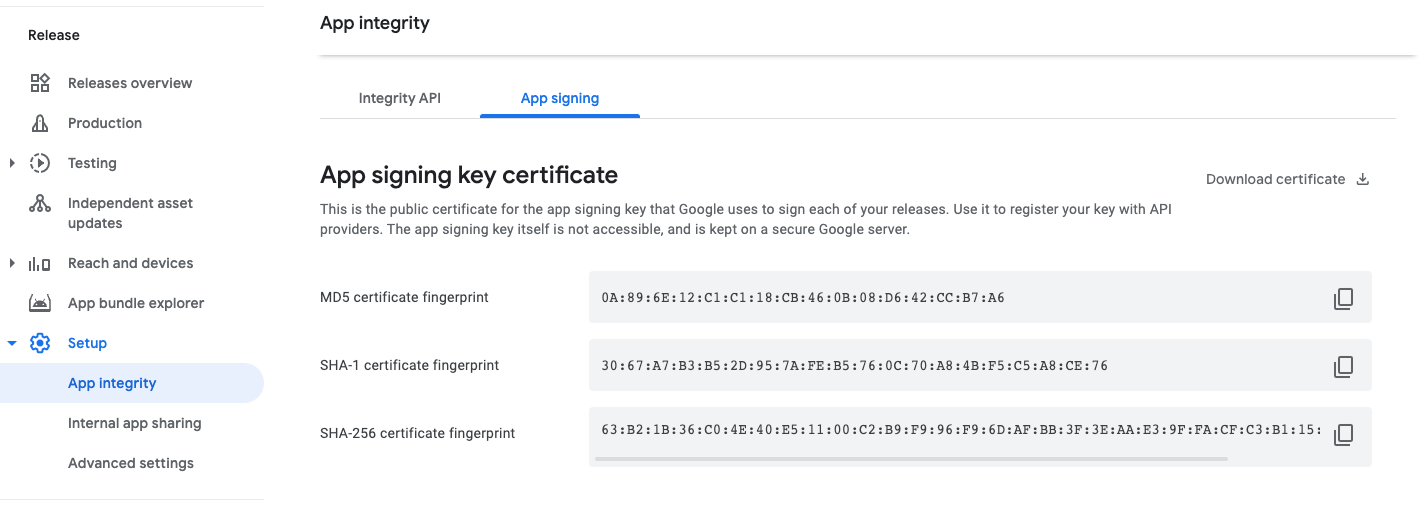
To learn how to generate sha_256 locally you can go throught this tutorial video by smler on youtube
Sample assetlinks.json file
[{
  "relation": ["delegate_permission/common.handle_all_urls"],
  "target": {
    "namespace": "android_app",
    "package_name": "com.example.deeplink_cookbook",
    "sha256_cert_fingerprints":
    ["FF:2A:CF:7B:DD:CC:F1:03:3E:E8:B2:27:7C:A2:E3:3C:DE:13:DB:AC:8E:EB:3A:B9:72:A1:0E:26:8A:F5:EC:AF"]
  }
}]
Set the package_name value to your Android application ID.
Set sha256_cert_fingerprints to the value you got from the previous step.
copy this content into smler's deep linking section in dashboard
Verify that your browser can access this file.
After this you're done with all the android configuration needed in flutter for deep linking to work. You can test the app in an emulater or android device and it should work smoothly.
Code handling
We recommend app_link package in flutter this package is well built and open source. Please go through it's documentation to handle the navigation in router
Published with LeafPad