
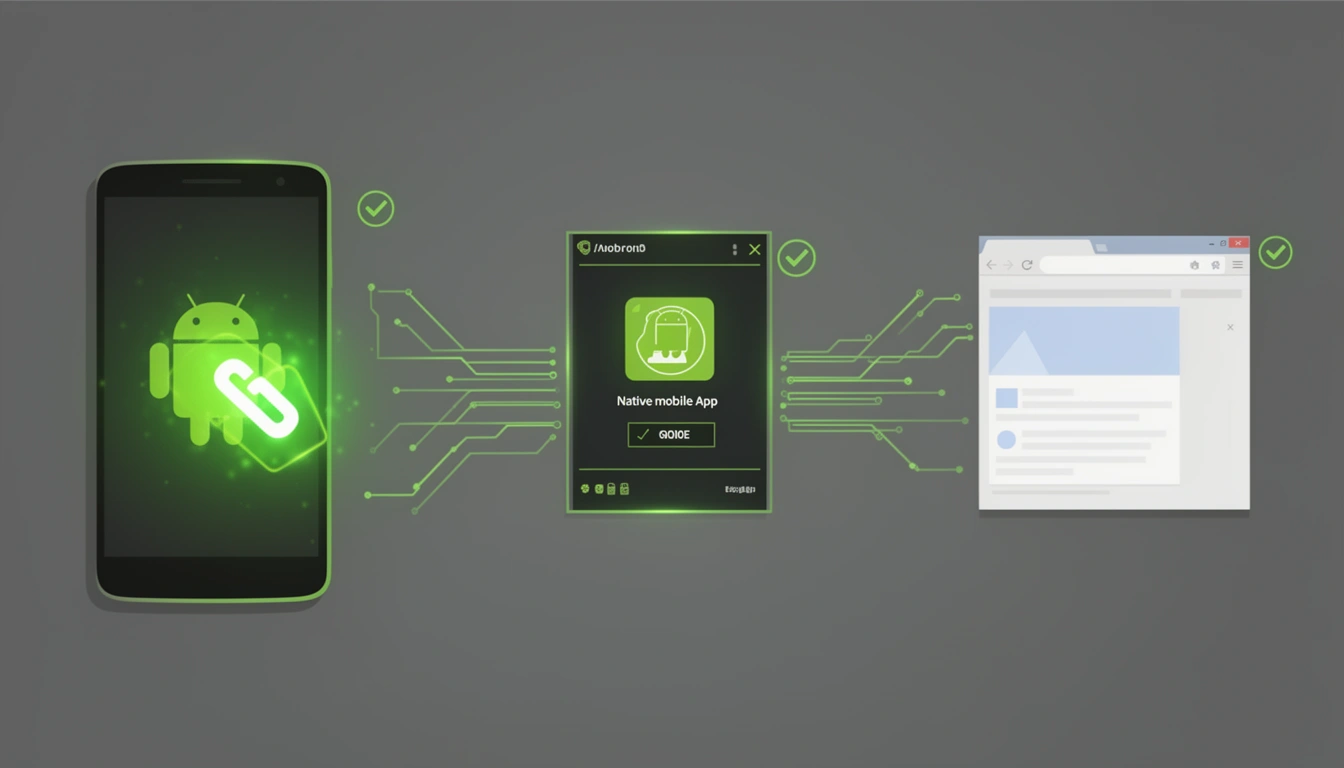
App links android is Google's system for turning ordinary HTTPS URLs into direct openers for your native app. When a user taps a verified link, Android skips the browser and the "open with" dialog and launches your app straight to the right screen, using a hosted assetlinks.json file and an autoVerify intent filter to prove you own the domain.
What Are Android App Links?
An Android app link is a standard http or https URL that your app is cryptographically verified to own, so the system opens it directly in the app instead of showing a chooser or falling back to the browser. It's Google's secure, SEO-friendly replacement for custom URI schemes like myapp://, built specifically to stop unverified apps from hijacking your links.
Four things define an app link:
- Automatic verification: Android checks the relationship between your app and your domain before it ever hands a link to your app.
- No disambiguation dialog: once verified, the user is never asked to choose an app.
- Built-in fallback: if the app isn't installed, the user is redirected to the app store or play store based on the device they are using.
- Security by design: domain verification means a malicious app cannot register itself as the handler for your URLs.
For how app links work across platforms generally, see App Links Across Platforms below.
How Do Android App Links Work?
Android app links work because three pieces agree with each other: an intent filter in your manifest marked android:autoVerify="true", a JSON file hosted on your domain at /.well-known/assetlinks.json, and a background verification step that compares the certificate fingerprint in that file against your app's actual signing key the moment the app is installed.
Once those three pieces line up, every link click follows the same resolution path:
- Click detection: the user taps a link in an SMS, email, browser, or another app, and Android intercepts it before any app opens.
- Intent matching: the system checks every installed app for an intent filter that matches the URL's scheme, host, and path.
- Handler selection: a manually-set user preference wins first, then a verified app link, then (if several apps match with no clear verified winner) a disambiguation dialog, then the default browser as the last resort.
- Launch or fallback: a verified app opens straight to the matching activity; an uninstalled app sends the user to the browser or, with deferred deep linking in place, on to the Play Store.
How to Set Up App Links on Android: Step-by-Step
Before you start, make sure you have an app with a defined package name, a domain you control with valid HTTPS, access to your signing keystore, and the ability to serve a file at /.well-known/ on that domain. With those in place, setup is five steps.
Step 1: Generate Your App's SHA-256 Certificate Fingerprint
Run this in your terminal against your release keystore:
keytool -list -v -keystore my-release-key.keystoreIf your app uses Play App Signing, don't use this local fingerprint. Instead, pull the SHA-256 from Google Play Console under Release, Setup, App Integrity, App signing key certificate. Using the wrong fingerprint here is the single most common reason app links fail verification.
Step 2: Create and Host assetlinks.json
Create the file with your package name and fingerprint, then publish it at https://yourdomain.com/.well-known/assetlinks.json:
[{
  "relation": ["delegate_permission/common.handle_all_urls"],
  "target": {
    "namespace": "android_app",
    "package_name": "com.example.yourapp",
    "sha256_cert_fingerprints": [
      "14:6D:E9:83:C5:73:06:50:D8:EE:B9:95:2F:34:FC:64:16:A0:83:42:E6:1D:BE:A8:8A:04:96:B2:3F:CF:44:E5"
    ]
  }
}]
This file has to be served over HTTPS with a valid certificate, with a Content-Type of application/json, with no authentication, and with no redirects. Android fetches the file at that exact path and gives up if it's redirected anywhere else. Before you ship, running the file through Smler's Android Assets Validator catches the formatting and hosting mistakes, bad content type, redirects, missing fingerprints, that otherwise only surface once real users start installing the app.
Step 3: Add an Intent Filter With autoVerify
In AndroidManifest.xml, declare the URLs your app should handle and turn on verification:
<activity android:name=".MainActivity">
  <intent-filter android:autoVerify="true">
    <action android:name="android.intent.action.VIEW" />
    <category android:name="android.intent.category.DEFAULT" />
    <category android:name="android.intent.category.BROWSABLE" />
    <data android:scheme="https" android:host="yourdomain.com" android:pathPrefix="/products" />
  </intent-filter>
</activity>
android:autoVerify="true" is the flag that tells Android to check this domain against your hosted assetlinks.json as soon as the app installs. Leave it off and the filter still matches URLs, but the system will never trust it enough to skip the chooser dialog.
Step 4: Handle the Incoming Intent in Your Activity
Parse the URL inside onCreate and onNewIntent so the link works whether the app was cold-started or already running:
override fun onCreate(savedInstanceState: Bundle?) {
  super.onCreate(savedInstanceState)
  handleIncomingLink(intent)
}

override fun onNewIntent(intent: Intent?) {
  super.onNewIntent(intent)
  intent?.let { handleIncomingLink(it) }
}

private fun handleIncomingLink(intent: Intent) {
  val action = intent.action
  val data: Uri? = intent.data
  if (Intent.ACTION_VIEW == action && data != null) {
    val productId = data.lastPathSegment
    val referrer = data.getQueryParameter("ref")
    loadProductDetail(productId, referrer)
  }
}
Step 5: Test and Verify
Confirm the link opens your app from the command line:
adb shell am start -a android.intent.action.VIEW \
-d "https://yourdomain.com/products/12345"
Then check whether Android actually trusts the domain (Android 12 and above):
adb shell pm get-app-links com.example.yourappA status of verified next to your domain means the whole chain worked. If it says legacy_failure or none, go back to Step 2 before touching the manifest again, almost every failure at this stage is a hosting or fingerprint problem, not a code problem. Google's Statement List Generator and Tester is also useful for validating the JSON syntax before you deploy it. For a deeper walkthrough of device-level testing, see How to Test Deep Links on Android.
Multi-Domain and Path-Based App Links
You can register more than one domain to the same app, or route different paths to different activities, by adding more <data> elements rather than duplicating entire intent filters.
<intent-filter android:autoVerify="true">
  <action android:name="android.intent.action.VIEW" />
  <category android:name="android.intent.category.DEFAULT" />
  <category android:name="android.intent.category.BROWSABLE" />
  <data android:scheme="https" android:host="shop.example.com" />
  <data android:scheme="https" android:host="store.example.com" />
  <data android:scheme="https" android:host="example.com" />
</intent-filter>
Each domain listed needs its own hosted assetlinks.json, with matching fingerprints, or verification for that domain will fail even if the others pass. For path-based routing, point separate activities at separate pathPrefix values, for example a product activity for /products/ and a category activity for /categories/, so links land on the right screen instead of a generic home view.
Is an Android App Link the Same as an Android Universal Link?
Not quite. "Universal Link" is Apple's name for the iOS equivalent of this feature, and the two work the same way conceptually but use different files and APIs under the hood. If you search "Android universal link," you almost always mean an Android app link, Google's own term, verified with assetlinks.json rather than Apple's apple-app-site-association file.
| Feature | Android App Link | Traditional Deep Link |
|---|---|---|
| URL scheme | HTTP or HTTPS only | Custom scheme, such as myapp:// |
| Verification | Domain ownership proven via assetlinks.json | None, any app can claim the scheme |
| User experience | Opens directly in the app, no chooser | May show a disambiguation dialog |
| Fallback when app is missing | Opens in the default browser | Often fails with no handler found |
| Works from search results or a web page | Yes, fully indexable | No, search engines cannot follow it |
For cross-platform apps you implement both: Android app links with assetlinks.json, and iOS Universal Links with apple-app-site-association. See What Are iOS Universal Links? for the Apple side, and App Links vs Universal Links for a direct setup comparison between the two.
Why Isn't My App Link Verifying? Common Pitfalls
Verification failures
If links still open a browser or chooser after install, check that assetlinks.json is reachable at the exact path with no redirect, that its Content-Type is application/json, that the SHA-256 fingerprint matches your release signing key, and that nothing in robots.txt is blocking /.well-known/. Run the file through Google's Statement List Tester to confirm it parses correctly.
Wrong certificate fingerprint
This is almost always a debug-keystore fingerprint used where the release fingerprint belongs. Pull the production SHA-256 from Play Console if you use Play App Signing, and if you need both debug and release builds to verify, list both fingerprints in the same assetlinks.json entry.
Subdomain mismatches
Android treats example.com and www.example.com as separate hosts. If app links work on one but not the other, host assetlinks.json on both, or add a separate <data android:host="..."> element for each variation in your intent filter.
<data android:host="example.com" />
<data android:host="www.example.com" />
Cached verification results
Android caches the result of verification, so editing assetlinks.json after the app is already installed doesn't retrigger the check automatically. Force it by clearing app data or reinstalling:
adb shell pm clear com.example.yourapp
adb uninstall com.example.yourapp
adb install app-release.apk
How Do You Test and Debug Android App Links?
Use adb shell am start to fire a link manually and confirm your activity receives it, then use adb shell pm get-app-links on Android 12 and above to see the actual verification status for each domain your app claims. A status other than verified means the system is still treating your app like an unverified handler, so links will show a chooser instead of opening directly. Before you push a new release, run assetlinks.json through a validator rather than waiting for a failed install to tell you something's wrong, catching a bad Content-Type header or a stray redirect in staging is far cheaper than catching it in a support ticket.
Also check Settings, Apps, your app, Open by default, to see whether the domain appears under supported web addresses. Then test the case where a user previously set links to open in the browser: that earlier choice overrides your intent filter until they reset link preferences.
How Does Deferred Deep Linking Work With App Links?
Deferred deep linking solves the one case app links can't handle alone: a user who clicks a link without the app installed. The link falls back to the browser or an app store listing, the user installs the app, and on first launch the app needs to recover what the original link was pointing to so the user still lands on the right screen instead of a generic home page.
On Android, this typically relies on the Play Install Referrer API to pass link parameters through the install flow:
val referrerClient = InstallReferrerClient.newBuilder(context).build()
referrerClient.startConnection(object : InstallReferrerStateListener {
  override fun onInstallReferrerSetupFinished(responseCode: Int) {
    if (responseCode == InstallReferrerClient.InstallReferrerResponse.OK) {
      val response = referrerClient.installReferrer
      val referrerUrl = response.installReferrer
      // parse referrerUrl for the original deep link parameters
    }
  }
  override fun onInstallReferrerServiceDisconnected() {}
})
Building and maintaining this attribution logic yourself is doable but fiddly to keep reliable across Android versions and Play Store install flows. Smler supports deferred deep linking alongside app links, preserving the original link's intent across the install so users reach the right content on first open rather than the home screen. The Deferred Deep Links on Android integration guide walks through wiring this up end to end.
App Links Across Platforms
An app link is a URL that opens directly inside a mobile app, on a specific screen, instead of a browser tab. If the app isn't installed, a well-built app link falls back to the app store or a web page instead of showing an error. App links work from email, SMS, social media, QR codes and web pages, and they pass parameters into the app so the user's intent is kept.
| Type | Verified? | Protocol | Works if app not installed? |
|---|---|---|---|
| Android App Link | Yes, via assetlinks.json | HTTPS | Falls back to browser |
| iOS Universal Link | Yes, via AASA file | HTTPS only | Falls back to browser |
| Custom URL scheme | No | Custom (myapp://) | No, shows an error |
| Deferred deep link | Depends on provider | HTTPS | Yes, carries intent through install |
Custom URL schemes like myapp://product/123 lack domain verification, so any app can register the same scheme and intercept your links. Treat them as a fallback inside your own app's routing, not as the public link in marketing, email or SMS. Firebase Dynamic Links is fully shut down, so teams that built deferred deep linking on it need another provider: see the migration guide.
What an App Link URL Is Made Of
An app link looks like a normal HTTPS web address. There's no special prefix; the routing happens on the OS and app side, not in the URL string.
https://yourdomain.com/products/wireless-headphones?utm_source=email&utm_medium=newsletter| Part | Example | What it does |
|---|---|---|
| Scheme | https:// | Required for Android App Links and iOS Universal Links; no custom protocol needed |
| Host | yourdomain.com | The domain you've verified ownership of via assetlinks.json or an AASA file |
| Path | /products/wireless-headphones | Maps to a specific in-app screen through your intent filters or Associated Domains config |
| Query parameters | ?utm_source=email | Passed through to the app for attribution, pre-filling a cart, or personalising the landing screen |
Design app link URLs so they also work as ordinary web links, giving users without the app a real web page rather than a dead end.
App Link Examples by Industry
- E-commerce: a "back in stock" email links straight to the exact product page inside the app, with size and colour already selected.
- Media and news: a shared article link opens the story in the app if it's installed, or the mobile web article if it isn't.
- Food delivery: an SMS reminder to reorder opens the app on the reorder screen with the cart pre-filled.
- Gaming: a referral link opens a specific event or reward screen, crediting the referring player automatically.
- Finance: a payment reminder opens the app on the exact bill or transaction.
- Travel: a booking confirmation opens the itinerary or check-in screen without a login and search.
App Links in React Native and Flutter
React Native apps need app link configuration done twice, natively on Android (intent filters, assetlinks.json) and on iOS (Associated Domains, AASA). The JavaScript Linking API only handles the link once the OS has decided to open the app, so configuring only the JavaScript listener is not enough. Flutter apps typically handle links through the app_links package, but it doesn't replace assetlinks.json or an AASA file: teams that skip the native setup usually find links work in debug builds but fail once verification is checked in production.
Fallbacks, Short Links and Security
- Build a mobile-optimised web fallback page that shows the actual content, with a clear "Open in App" button and a store download link, and use device-based routing to send users to the correct store.
- Shorten app links for SMS character limits, a trustworthy appearance, a destination you can update without changing printed URLs, and click analytics. Smler lets you set an iOS Universal Link, an Android App Link and a web fallback on one shortened, custom-domain link.
- Never trust incoming link parameters. Validate them before loading content:
// Good - validated input
let productId = validateProductId(linkParams.productId)
if (productId) {
  loadProduct(productId)
} else {
  showError()
}
App Link Metrics
| Metric | What it tells you |
|---|---|
| Click-through rate | Whether the link is appealing and placed well in the message or page |
| App open rate | Share of clicks that launch the app rather than falling back to web |
| Conversion rate | How many clicks lead to a purchase, sign-up, or other target action |
| Time to conversion | How long after the click the action happens, useful for spotting friction in the fallback or onboarding flow |
| Device and OS breakdown | Where verification or routing is failing, since problems often concentrate on one platform or manufacturer |
Treat any sudden drop in app open rate as a verification problem first, not a user-behaviour problem: it's usually a broken assetlinks.json, AASA file, or a redirect added upstream.