
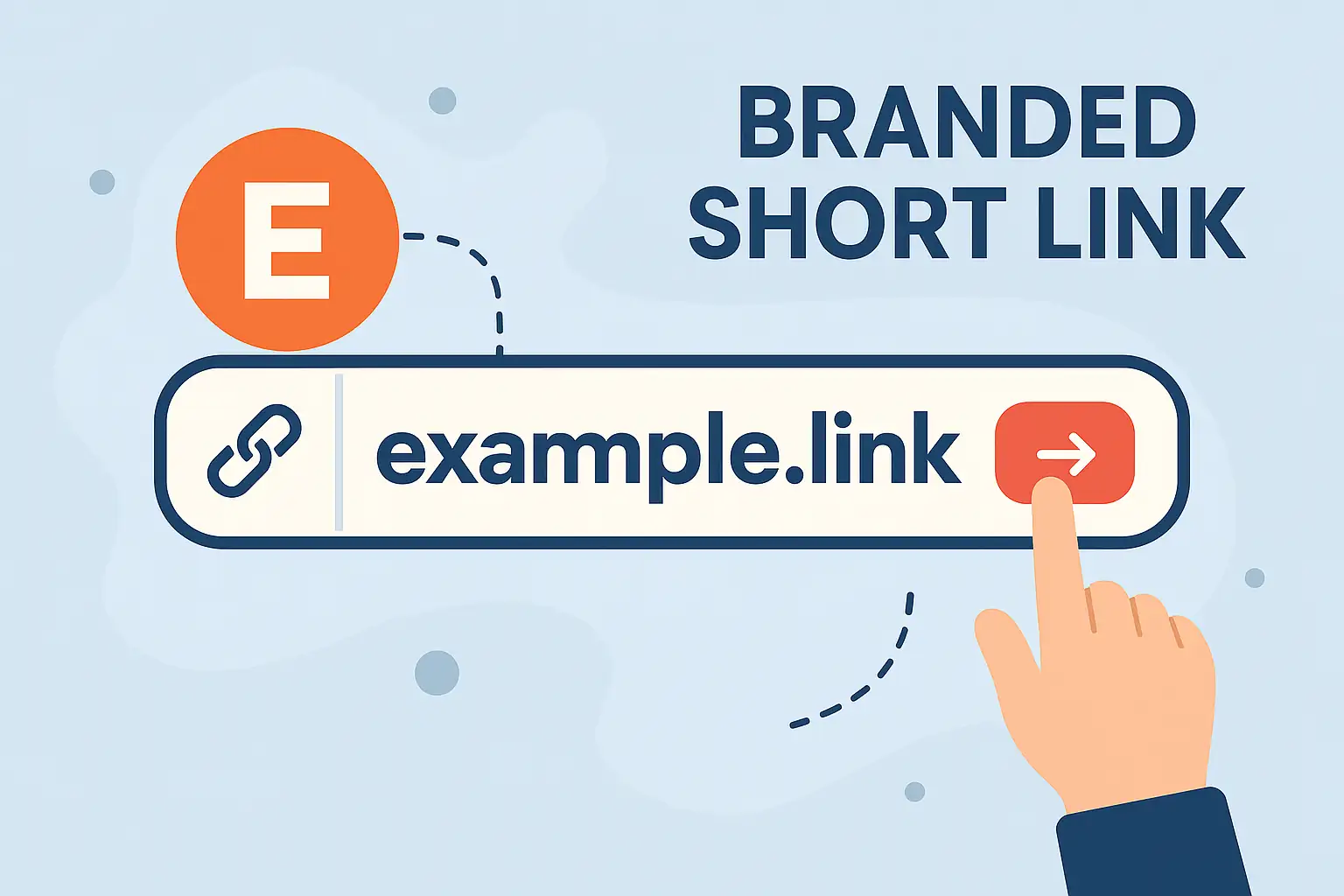
Domain Authentication and Link Branding: Setting Up Your Custom Domain on Smler
Domain authentication is the step that proves you own a domain before Smler lets you brand short links with it, and it's the part of custom domain setup most guides skip over. This post focuses specifically on that authentication process and how it powers link branding, not the general case for why branded links matter (we cover that broader argument in our branded vs generic short links comparison).
What Is Domain Authentication for Link Branding?
Domain authentication is the CNAME-based verification Smler uses to confirm you control a domain before it lets that domain generate branded links. Without it, anyone could type in a domain they don't own and claim it inside a dashboard. Authentication ties the domain record in your DNS to your Smler account, so every short link created under that domain is provably yours, which is what makes the branding trustworthy rather than just cosmetic.
Do You Need a Custom Domain, or Is a Free Smler Subdomain Enough?
If you just need a branded link fast, claim your free *.smler.io subdomain first, no DNS changes or authentication required. However, before you can create deep links, you need to configure your deep link custom domain in Smler. Authentication and configuration are necessary once you want a fully custom domain, such as go.yourbrand.com, pointing at your own root or subdomain.
How to Authenticate a Custom Domain on Smler
Authenticating a custom domain takes two steps: pointing a CNAME record at Smler, then registering that same domain inside your dashboard. Here is the full process:
- Update your CNAME record. Log in to your domain registrar (GoDaddy, Namecheap, Cloudflare, etc.), open DNS settings, and add or edit a CNAME record. Set the host to your subdomain, for example go if you're using go.yourdomain.com, or leave it blank or @ for a root domain, and point it to smler.in. Leave TTL at default unless you want faster propagation.
- Register the domain in your Smler dashboard. Log in at Smler.io, open the "Custom Domain" section in the side navigation, and enter the exact domain or subdomain you configured in DNS. Save it.
- Confirm authentication and start sharing links. Once Smler verifies the CNAME, your domain moves from pending to authenticated. From then on, every link you create can use it, so instead of https://smler.io/awesome your users see https://go.yourdomain.com/awesome.
If you also want your root domain to redirect visitors to a specific page rather than a dead end, pair this setup with Smler's root routing feature. Full API details for both steps are in our API documentation.
How Long Does Domain Authentication Take to Propagate?
Most CNAME records propagate within a few minutes to a few hours, though it can occasionally take up to 24 hours depending on your DNS provider and TTL setting. If your dashboard still shows the domain as unauthenticated after that window, the CNAME almost certainly hasn't finished propagating or was entered incorrectly.
To troubleshoot:
- Check propagation manually. Use a tool like whatsmydns.net to see whether your CNAME has updated across DNS servers worldwide.
- Match the domain exactly. The domain you enter in the Smler dashboard must match the CNAME host exactly, including whether it's a subdomain or root domain.
- Re-check TTL. A high TTL value can delay how quickly changes are visible even after you've saved them correctly.
If authentication still fails after propagation completes, email [email protected] and our team will check it from our side.
Why Authenticated Domains Matter for Compliance, Not Just Branding
An authenticated custom domain does more than look professional, it's also what lets you attach the DLT headers Indian SMS regulations require. If you're sending SMS campaigns under TRAI rules, your custom domain needs to carry the correct header format alongside authentication, which we cover in detail in our TRAI compliance and custom domains guide and in the 30-character header breakdown. Get the authentication step wrong and the compliance step behind it won't work either.
What Happens After Your Domain Is Authenticated?
Once authenticated, your domain is fully active for link creation, and every click on it feeds into your Smler analytics the same way smler.io links do. You can track geography, device, and browser breakdowns per branded domain, which is useful if you run several brand domains from one account. See our link-level analytics guide for what's available.
Frequently Asked Questions
What is domain authentication and link branding?
Domain authentication is the process Smler uses to confirm you own a domain, via a CNAME record, before allowing that domain to generate branded short links. Link branding is the result: short links that display your own domain instead of a generic one. Authentication is the security step that makes branding trustworthy rather than just decorative.
What is Smler?
Smler is a URL shortening and deep linking platform that lets businesses create branded short links, route users to the right app or web page automatically, and track link performance in detail. It supports custom domains, TRAI-compliant SMS headers, bulk link creation, and analytics down to the individual link.
How long does domain authentication take on Smler?
Most domains authenticate within a few minutes to a few hours after the CNAME record is saved, since that's how long DNS changes typically take to propagate. If it's been longer than 24 hours, check your CNAME entry with a propagation tool before contacting support.
Do I need a custom domain to use Smler?
No. Every Smler account includes a free *.smler.io subdomain that works immediately without any DNS changes or authentication. A fully custom domain, like go.yourbrand.com, is only necessary if you want your own brand name in the link rather than smler.io.
Published with LeafPad