
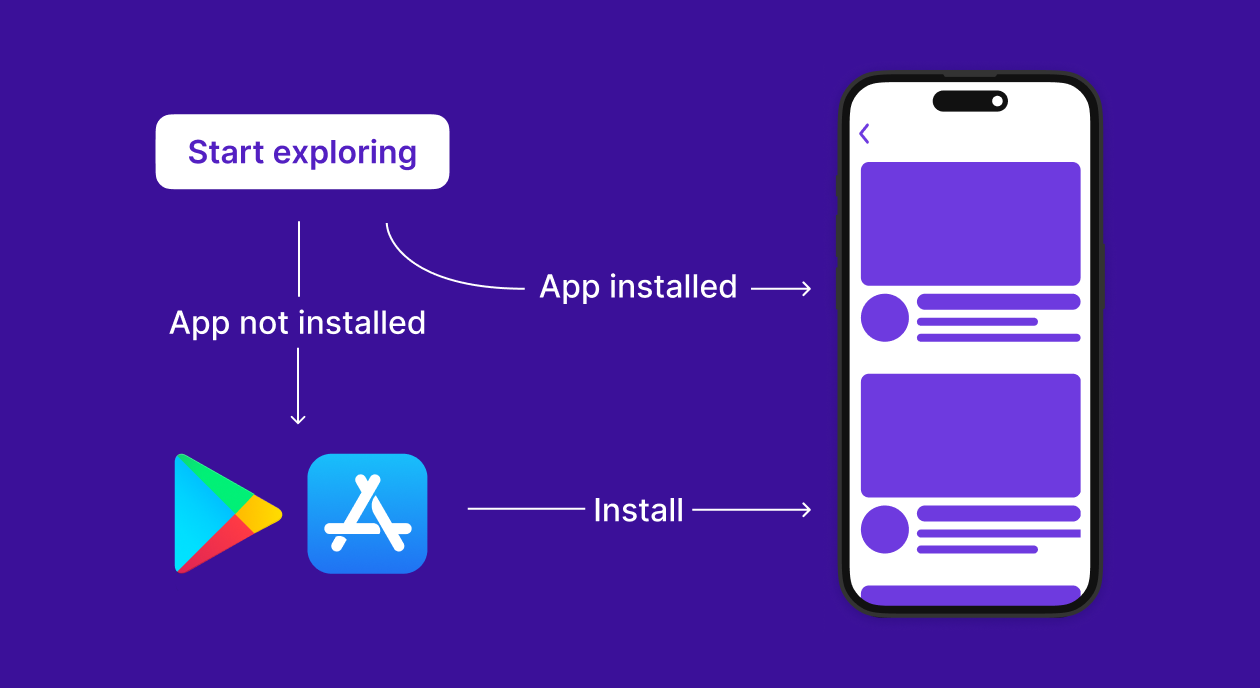
If you're looking to enhance your app's user experience and improve conversion rates from links, deferred deep linking is the way to go. With Smler, generating deferred deep links is incredibly simple no complex SDKs or setups required.
In this guide, we’ll show you how to create deferred deep links in Smler, how to configure app settings for Android and iOS, and how these smart links behave across devices.
✅ What is a Deferred Deep Link?
A deferred deep link allows you to take users directly to a specific page inside your app, even if they haven't installed it yet. If the app isn't installed, the user is redirected to the App Store or Play Store, and once installed, they're routed to the exact in-app content the link was meant for.
🔗 How to Generate a Deferred Link in Smler
Follow these steps to start generating deferred links in seconds:
1. Go to the Deferred Link Section
Head to your Smler dashboard.
In the side navigation, select Deferred Link or directly visit:
👉 https://app.smler.in/app/deferred-link
📁 Deferred Link Interface Overview
Once you're in the Deferred Link section, you'll notice two tabs:
🔍 1. Links
This section displays a list of all your previously generated deferred links with tracking, click metrics, and redirection destinations.
⚙️ 2. Configuration
Before generating a deferred link, make sure to configure your Android and iOS settings correctly.
🤖 Android Configuration
To enable deferred linking on Android, provide the following:
Play Store URL
Example: https://play.google.com/store/apps/details?id=in.smler.app
App Package Name
Example: in.smler.app
App Scheme
Example: smler:// or your custom scheme like myawesomeapp://
These settings allow Smler to know where to redirect the user based on their app installation status.
🍎 iOS Configuration
Similarly, for iOS devices, fill in:
App Store URL
Example: https://apps.apple.com/in/app/smler-app/id123456789
App Scheme
Example: smler:// or myawesomeapp://
These configurations ensure that your iOS users are smoothly redirected to the App Store or deep inside your app.
Once you’ve filled in these values, hit Save Configuration. You’re now ready to start generating powerful deferred links!
🎯 Generating the Link
To create your custom deferred link:
Go to the Home Dashboard
Click the Customize tab
Enable "Deeplinking" to activate deferred functionality on your short URLs
Create a new short URL and under the advanced settings, link it with the appropriate deferred configuration
That’s it! Your new link will now intelligently redirect users based on their device and app status.
🔍 Example Use Case
Imagine you're running a campaign for your food delivery app. You create a deferred link like:
👉 https://smler.in/deliveryoffer
When clicked:
iOS users are taken to the App Store if they haven’t installed the app
Android users with the app are deep linked to the “Offers” screen using your scheme (
myawesomeapp://offers)Others are routed to a fallback web page
All tracked. All smooth. All from one Smler link.
🧠 Why Use Smler for Deferred Deep Linking?
No SDKs to integrate
Web dashboard setup in minutes
Works seamlessly across Android & iOS
Integrated analytics and click tracking
Custom branding and white-label URLs
✅ Final Tips
Make sure your app is configured to handle the scheme URLs
Always test your links on both platforms before large campaigns
Use different links for specific campaigns to measure performance
🔚 Conclusion
With Smler’s Deferred Deep Link Generator, you're empowering your links with intelligence and context. Whether you want to onboard users, retain them, or simply offer a seamless journey — deferred deep links make all the difference.
Published with LeafPad